The 'Cursor' Moment for Video Editors
If you've spent any time in the developer world lately, you've heard about Cursor — the AI-powered code editor that lets engineers describe what they want in plain English and watch the code write itself. Developers stopped memorizing syntax and started focusing on architecture. The grunt work got delegated. The thinking stayed human.
That exact shift is happening right now in Premiere Pro. And if you've been editing professionally for a decade, you already feel it coming.
Think about how you actually spend your day. You're not making creative decisions 100% of the time. You're hunting for that one clip buried in a bin you named three weeks ago. You're manually dropping markers on every profanity hit before the client delivery. You're duplicating sequences, renaming them, resizing graphics for the fourth platform this week. You're doing the same 40-click workflow you've done a thousand times before.
That's not editing. That's administration. And it's eating your best cognitive hours.
The shift we're talking about is moving from button-based editing — where you know exactly which menu to navigate — to intent-based editing, where you describe what you need and the tool figures out the execution. This isn't about replacing your creative judgment. It's about treating your timeline the way senior engineers treat their codebase: you set the direction, the Copilot handles the implementation.
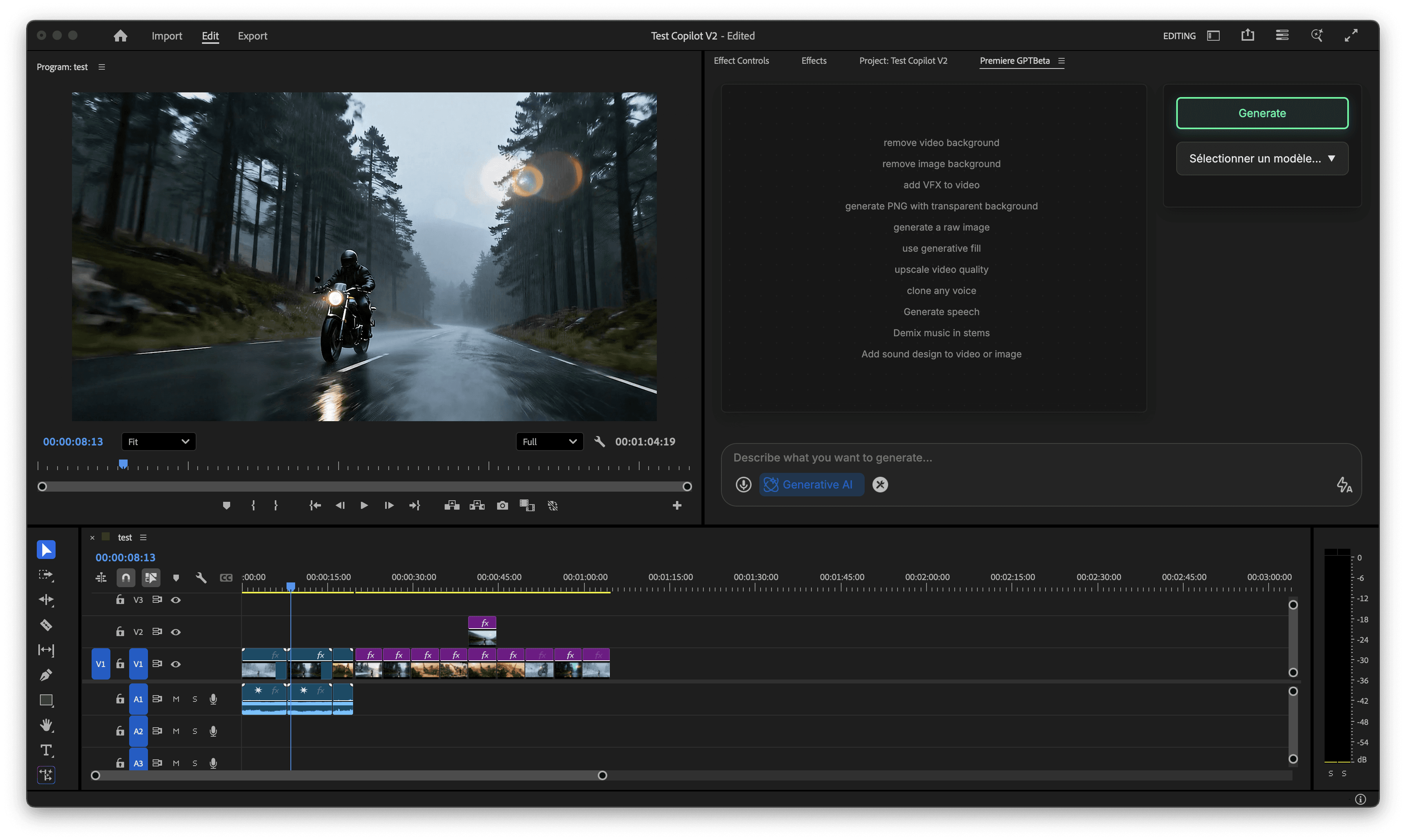
Tools like PremiereCopilot are building exactly this layer — a natural language interface that sits on top of your .prproj file and translates your intent into timeline actions. No new UI to learn. No workflow overhaul. Just a chat window that understands what "pull all the B-roll from the interview sequence and drop it into a selects bin" actually means.
This is the Cursor moment for video editors. And the editors who adapt early are going to be operating at a completely different level of output within the next 12 months.
Stop Chasing Markers — Using Timeline Audio Research to Find Specific Quotes and Viral Hooks Without Re-Watching 2 Hours of Raw Footage
Here's a scenario you've lived through more than once. You have a 90-minute interview. Somewhere in that footage, the subject said something that would make a perfect hook — a punchy 8-second clip that would stop the scroll. You remember it vaguely. You start scrubbing. Twenty minutes later, you're still looking.
This is one of the most expensive time leaks in a professional edit. Not because it's hard, but because it's entirely avoidable.
With a chat-based timeline assistant, you describe what you're looking for in plain language. "Find every clip in the interview bin where the subject talks about failure or rejection." The AI parses the transcription data tied to your footage, locates the relevant timecodes, and either drops markers or pulls those clips directly into a selects sequence. You go from 20 minutes of scrubbing to a 10-second prompt.
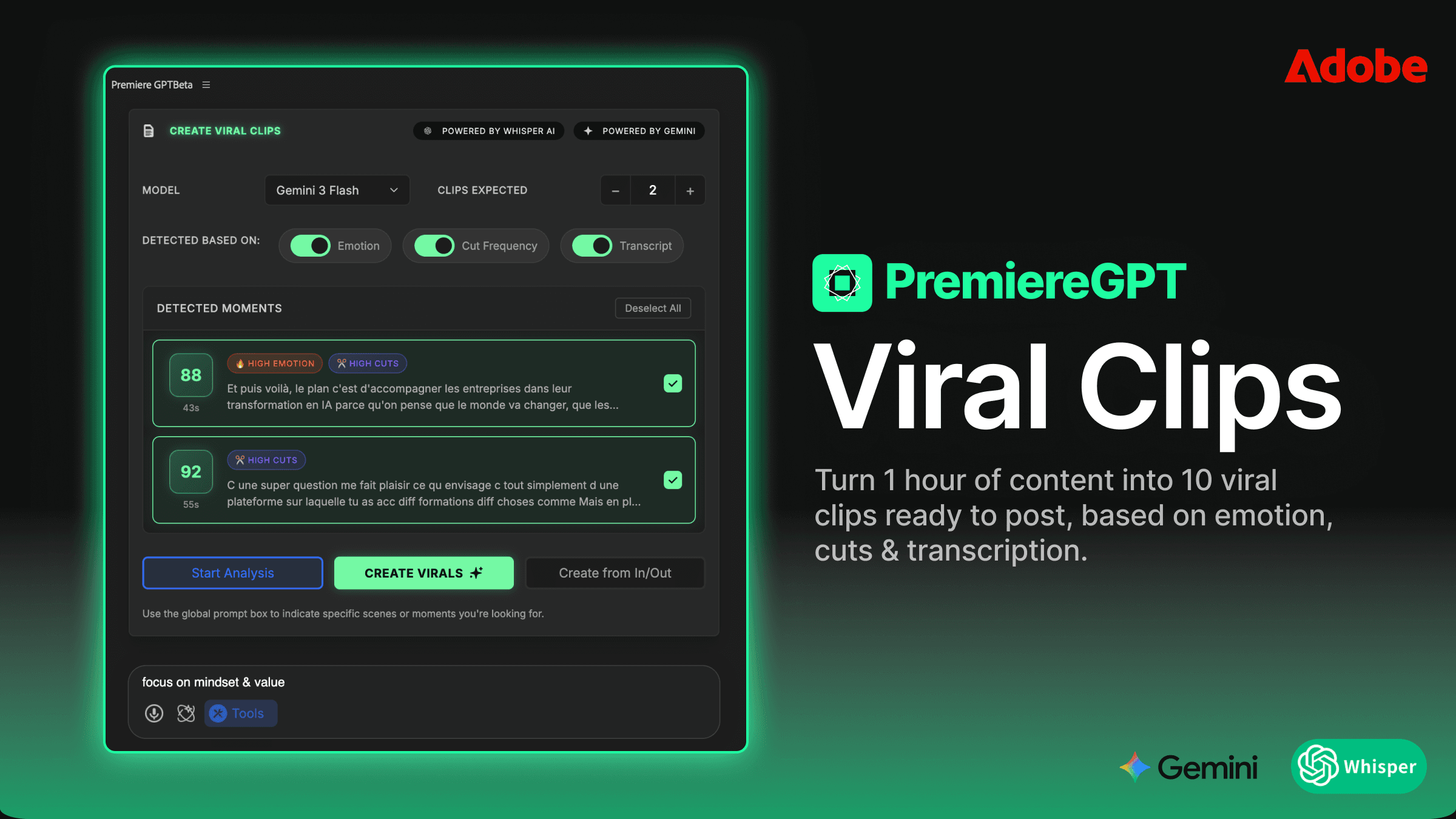
The same workflow applies to finding viral hooks. If you're cutting content for social, you know the hook has to land in the first three seconds. Instead of watching every clip to find the most emotionally charged moment, you prompt: "Find the five most high-energy statements across all interview clips and mark them." Your timeline populates with markers. You review five candidates instead of 90 minutes of raw footage.
Marker placement in general is one of those tasks that sounds trivial until you're doing it at scale. Dropping chapter markers for a YouTube long-form. Flagging every music hit for a color-timed commercial. Marking every location where a lower-third needs to appear. These tasks are mechanical, repetitive, and they pull you completely out of the creative flow state.
"The best editors I know don't have faster fingers. They've just eliminated more of the work that doesn't require a human."
When your Copilot handles the research and the markup, you show up to the timeline with context already built. You're not orienting yourself — you're making decisions. That's where the real value of your experience lives.
From 'Resize' to 'Re-version' — How to Prompt Your Way Through Creating Social Sequences and Multi-Platform Exports in Seconds
Multi-platform delivery used to mean one thing: suffering. You cut the 16:9 master, then you opened Auto Reframe, prayed it didn't crop someone's head off, adjusted it manually anyway, duplicated the sequence, renamed it, changed the sequence settings, re-rendered the graphics layer because your motion designer built everything at 1920x1080, and then did all of that again for Stories, Reels, and whatever the client decided to add at 4pm on a Friday.
The problem was never the concept of resizing. The problem was that every step required manual intervention, and none of it had anything to do with storytelling.
Intent-based editing flips this entirely. Instead of executing a 15-step process, you describe the outcome: "Create a 9:16 version of the master sequence optimized for Instagram Reels, duplicate all markers, and flag any clips where Auto Reframe needs manual review." The Copilot builds the sequence structure, applies the reframe logic, and surfaces only the decisions that actually need your eyes.
Re-versioning goes beyond aspect ratios. Think about the full scope of what "creating a social cut" actually involves:
Trimming the sequence to a platform-appropriate length (60s for Reels, 3 minutes for YouTube Shorts long-form, etc.)
Adjusting pacing by tightening pauses and removing filler
Repositioning or swapping out graphics that don't read at mobile scale
Duplicating the sequence with a clear naming convention into the correct bin
Setting export presets and adding to the render queue
Every single one of those steps can be described in natural language and executed without you touching a menu. You describe the deliverable. The Copilot builds the scaffold. You review and approve.
For editors handling high-volume content — agencies, YouTube channels, brand studios — this is the difference between delivering three platforms and delivering six. Not because you worked longer, but because the re-versioning overhead dropped from two hours to fifteen minutes.
Local Control vs. Cloud Latency — Why Pro Editors Need AI That Manipulates the .prproj File Locally Instead of Uploading Proxies to a Server
This is the conversation that doesn't happen enough in the AI editing discourse, and it's the one that matters most to working professionals.
A lot of AI video tools operate on a cloud-upload model. You send your footage or your proxies to a server, the AI does its analysis, and results come back. For a hobbyist cutting a vlog on a 50Mbps connection, that's fine. For a professional editor working with confidential client footage, under NDA, on a 4K multicam project that's 800GB of media — it's a non-starter.
There are three hard reasons why local AI control is non-negotiable for pro workflows:
Confidentiality: Client footage, unreleased product reveals, legal depositions, medical content — none of this goes to a third-party server. Full stop. Your NDA doesn't have a "cloud AI exemption" clause.
Latency: Upload time alone kills the flow state. If every prompt requires a round-trip to a server, you've just introduced a friction point that makes the tool feel slower than doing it manually. Local processing means near-instant response.
Stability: Cloud services go down. Rate limits get hit. API pricing changes overnight. A tool that operates directly on your .prproj file, locally, doesn't have any of those dependencies. It works when your internet doesn't.
The architecture that actually serves professional editors is one where the AI reads and writes directly to the project file on your local machine. It understands the structure of a .prproj — sequences, bins, clips, markers, metadata — and manipulates it without ever needing to touch the media files themselves. No uploads. No proxies leaving your drive. No latency.
This is the architectural difference between a consumer toy and a professional tool. When you're evaluating any AI editing assistant, the first question isn't "what can it do?" It's "where does it run?" If the answer isn't "locally, on your machine, against your project file," it's not built for the way professionals actually work.
The 'Senior Editor' Prompt Library — Examples of How to Offload Color Grading, Trimming, and Organization to the Copilot
Here's where it gets practical. The real value of a natural language Copilot isn't in any single feature — it's in the cumulative time you recover by offloading low-level decisions to it consistently. Think of it as having a very capable assistant editor who never needs you to explain Premiere's UI. You just tell them what you need.
Below are the categories where experienced editors are already seeing the biggest efficiency gains.
Project Organization
Bin structure is one of those things every editor has strong opinions about and almost nobody maintains perfectly under deadline pressure. A Copilot prompt like "Organize all clips in the media bin by camera angle and date, create sub-bins for A-cam, B-cam and GFX, and flag any clips missing metadata" takes a two-hour cleanup job and turns it into a 30-second task. Your .prproj stays clean without you having to be the one cleaning it.
Rough Cut Trimming
Assembly cuts are full of dead air, false starts, and filler. "Trim all pauses longer than 1.5 seconds from the interview sequence and remove any clip where the subject says 'um' or 'like' more than twice in a row" is a prompt that would have taken you an hour of manual J-cut work. The Copilot executes it. You review the output and restore the two cuts where the pause was intentional. Net time: eight minutes instead of sixty.
Color Grading Preparation
Before you even open Lumetri, there's organizational work: grouping clips by lighting condition, applying a base LUT across all exterior shots, flagging clips that are more than two stops underexposed for manual attention. These are not creative color decisions — they're technical setup tasks. "Apply the Rec709 base LUT to all exterior clips in the main sequence and create an adjustment layer for interior shots" is a prompt, not a 45-minute setup session.
Multicam Sequence Management
Anyone who's built and managed multicam clips in Premiere knows the overhead. Syncing, angle assignment, switching logic — it's meticulous work. Prompting your Copilot to "create a multicam sequence from all clips in the interview bin, sync by audio waveform, and assign camera angles based on clip naming convention" handles the scaffolding so you can focus on the actual cut.
Export Queue Management
"Add all sequences prefixed with 'FINAL_' to the Media Encoder queue using the H.264 YouTube preset, set output to the client delivery folder, and flag any sequences shorter than 30 seconds for review." That's a prompt. Not a workflow. The difference matters when you're managing a 12-deliverable project at end of day.
The pattern across all of these is the same: you're not removing yourself from the process. You're removing yourself from the low-level execution of the process. The creative judgment — the pacing instinct, the color eye, the story sense — that stays entirely with you. The Copilot handles the mechanical layer so your brain stays focused on the work that actually requires ten years of experience.
Get the Full Prompt Library
If these examples resonated, you're going to want the full resource. We've compiled the "Power Prompt" Cheat Sheet — 25 copy-paste natural language commands covering everything from marker placement and sequence duplication to bin organization and export queue automation. These are prompts built specifically for Premiere Pro workflows, written the way an experienced editor thinks, not the way a software manual reads.
Every prompt on the list is something you can drop directly into a chat-based Copilot and execute immediately. No customization needed. No prompt engineering required. Just copy, paste, and get your time back.
Download the Power Prompt Cheat Sheet and start running your timeline like a senior editor with an assistant who never sleeps.