The Retention Edit Trap: Why Manual Punch-ins Are Killing Your Hourly Rate
You know the edit. Talking head footage. Single camera. The client wants it to feel "dynamic" — energetic, punchy, built for short attention spans. So you sit down and you start doing the thing. You watch a sentence, you drop a keyframe on the Scale property, you ramp it up 15%, you ease it in, you ease it out, you nudge the playhead, you repeat. For a 10-minute interview, you're looking at anywhere between 40 and 80 individual zoom moments. That's hundreds of keyframes. By hand.
This is the retention edit trap. The style was popularized by a wave of high-output social content — the kind where every three seconds something visually changes so the viewer's thumb stays still. It works. The problem is the labor cost. If you're charging a flat rate per video and spending four hours on punch-ins alone, you are actively losing money every time you open that sequence.
And the worst part? Most of those zooms are arbitrary. You're not reacting to the speaker's delivery. You're just filling space with motion because the edit feels too static. You're applying a technique without a real trigger, which means the result often feels mechanical anyway — zooms that land on the wrong syllable, punch-ins that hit during a breath instead of a punchline.
There is a better way to do this, and it starts by separating the question of when to zoom from the question of how to execute it. The first part — the when — is actually a data problem. And data problems can be automated.
Emotion Detection vs. Static Math: How the Algorithm Identifies 'Peak' Moments for a Zoom
Most basic auto-zoom plugins operate on static math. They look at audio amplitude, find the loudest transients, and drop a zoom on those frames. It's a blunt instrument. Loud doesn't mean important. A speaker clearing their throat is loud. A table slap is loud. The actual moment of emotional emphasis — the pause before the key word, the slight pitch rise on a critical phrase — those are often not the loudest moments in the waveform. They're the most meaningful moments, and amplitude alone can't find them.
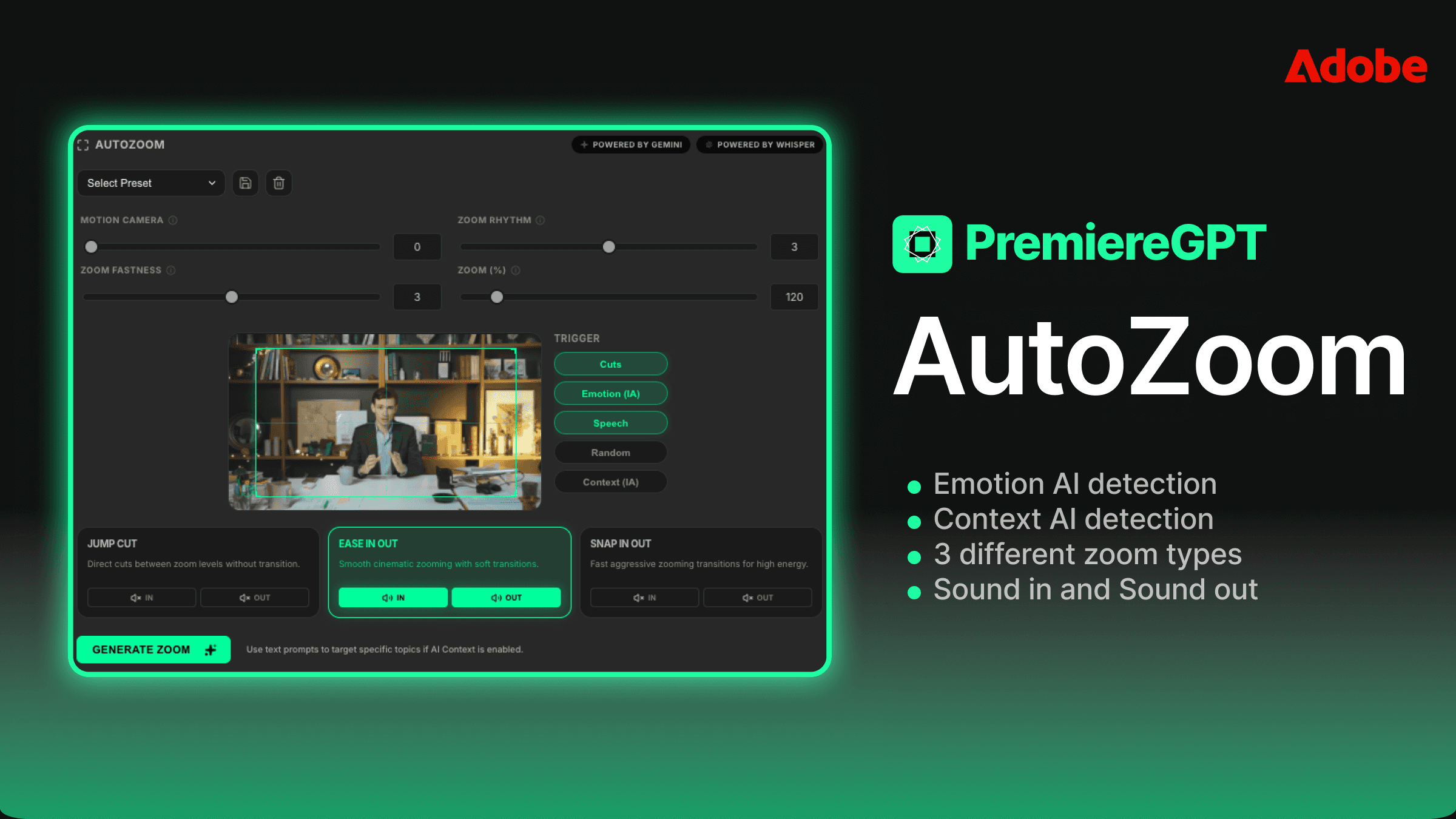
Emotion detection works at a different layer. Instead of just reading the audio signal, it analyzes the speech content, the prosody (the rhythm, stress, and intonation of speech), and the semantic weight of what's being said. The algorithm is asking a fundamentally different question. It's not asking "where is the audio peak?" It's asking "where is the speaker at peak emotional delivery?"
In practice, this means the system can identify moments like a speaker leaning into a conclusion, a rhetorical question landing, a moment of vulnerability or emphasis — the kind of beats that an experienced editor would instinctively feel while watching the footage. The AI isn't watching the footage, but it's parsing the same signals a skilled editor would respond to: tonal shift, pacing change, semantic climax.
The result is zoom placement that actually tracks the speaker's delivery arc rather than just the loudest hits in the audio file. When you review the AI-generated effects in your timeline, you'll find that the punch-ins land on moments you would have chosen yourself — which means less time correcting bad placements and more time making the few adjustments that actually require editorial judgment.
This is not magic. It's a well-scoped automation task. The algorithm is not making creative decisions — it's surfacing the moments that are statistically most likely to benefit from a visual emphasis. You still decide whether that emphasis is right for the specific piece. But now you're making that call on 10% of the zooms instead of placing 100% of them from scratch.
Beyond the Crop: Customizing Speed, Sound Design, and AI Context Prompts for the Perfect 'Vibe'
A zoom is not just a zoom. The difference between a 4-frame punch-in with a whoosh sound and a 12-frame smooth push with no audio treatment is the difference between a hype reel and a documentary. Speed and sound design are the variables that define the emotional register of a retention edit, and any serious automation tool needs to give you control over both.
When configuring your auto-zoom passes, you're working with two primary speed profiles. Fast zooms — typically 3 to 6 frames — are your high-energy cuts. They work for motivational content, reaction moments, punchlines. They feel aggressive and they should. Smooth zooms — 10 to 20 frames with eased interpolation — are for storytelling content, emotional beats, explanatory segments where you want to draw the viewer in rather than jolt them. Using the wrong speed profile on the right moment is still a bad edit.
Sound design layering on zooms is often treated as an afterthought, but it's actually one of the highest-leverage elements in the retention edit stack. A subtle low-frequency thud under a slow push adds weight. A tight high-pitched swish under a fast punch-in adds snap. The audio treatment tells the viewer's brain how to feel about the visual move before they've consciously processed it.
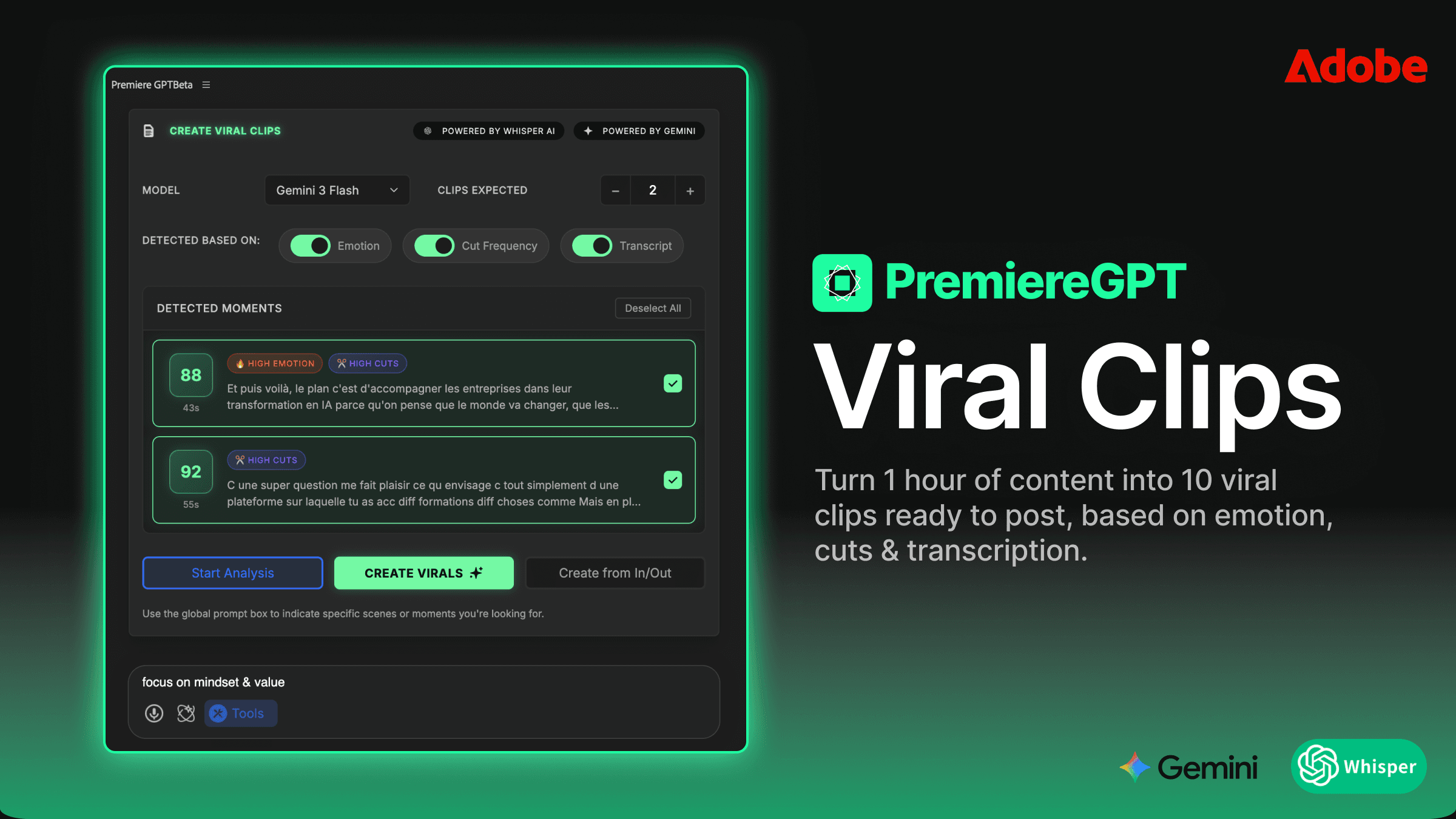
The AI context prompt feature is where the workflow gets genuinely sophisticated. Instead of applying a one-size-fits-all zoom algorithm, you can feed the system a brief description of the content's emotional intent. A prompt like "motivational business content, high energy, confident speaker" will calibrate the detection threshold differently than "personal story, emotional vulnerability, slow pacing." The algorithm uses the context to weight which emotional signals to prioritize when selecting zoom trigger points.
Think of it as briefing the AI the same way you'd brief a junior editor. You're not giving it a frame-by-frame script — you're giving it enough context to make better decisions within its operational scope. The more specific your prompt, the more the output reflects the actual tone of the piece rather than a generic retention edit template.
Non-Destructive Workflow: Why Keeping Zooms on Effects Layers Beats Nested Sequences Every Time
Here is the part that matters most from a professional workflow standpoint, and it's the part that separates a tool worth using from a tool that creates more problems than it solves.
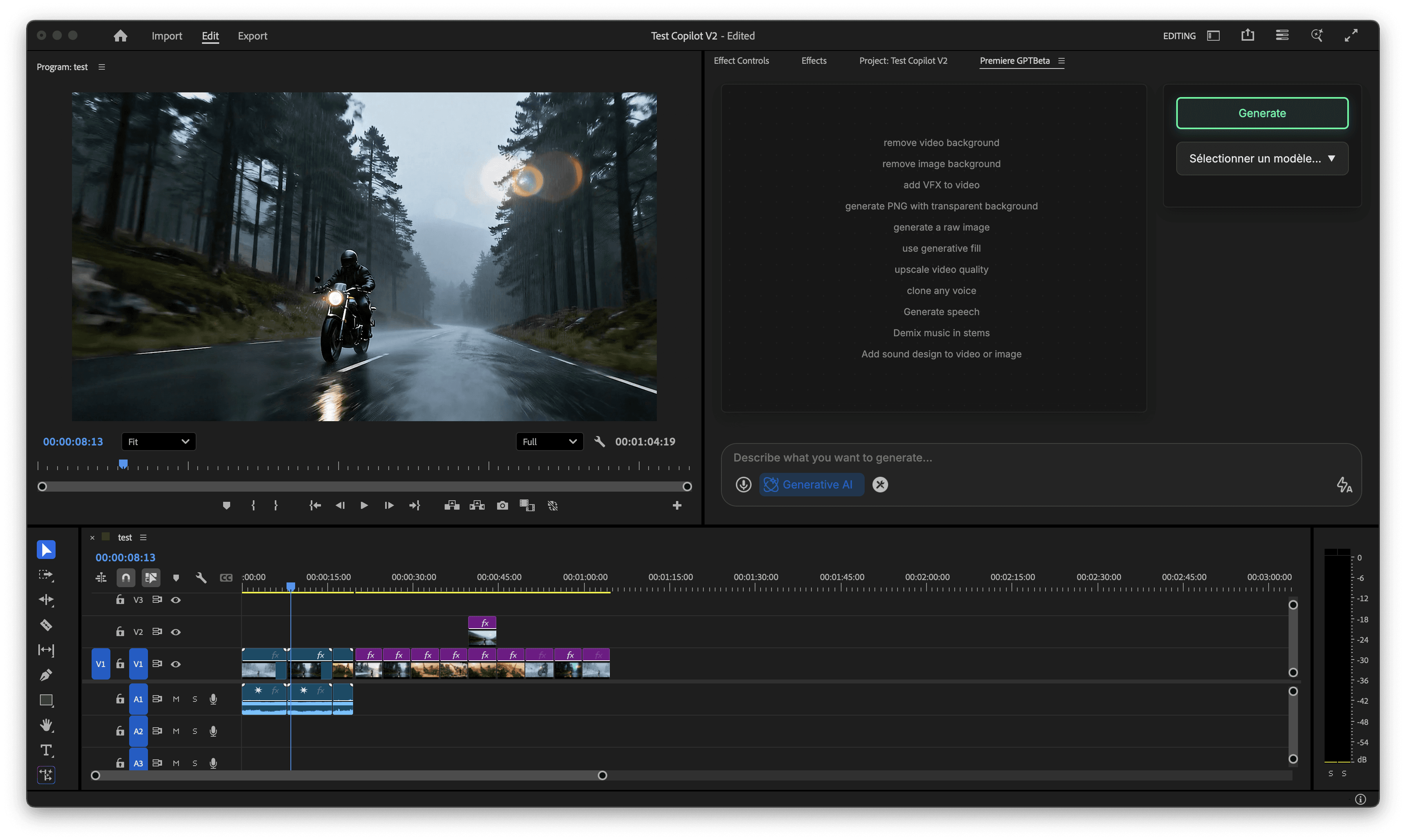
When PremiereCopilot applies auto-zooms to your timeline, it does not bake the motion into your clips. It does not nest your footage. It does not touch your original media. It applies the zoom effects as Effects Layers — dedicated adjustment-style layers sitting above your footage in the timeline, containing all the Scale and Position keyframes generated by the AI pass.
Why does this matter? Because nested sequences are a trap. Once you nest a clip to apply motion to it, you've added a layer of abstraction between you and your edit. Need to trim the clip? Now you're managing in-points and out-points across two levels of the timeline. Need to swap the underlying footage? You're going into the nest. Need to remove the zoom entirely? You're either deleting the nest or going inside it. Every operation that should be simple becomes a two-step process.
Effects Layers keep everything at the same timeline depth. The zoom is on a layer above the clip. You can see it, select it, delete it, move it, or adjust its keyframes directly in the Effect Controls panel — exactly the same way you'd work with any other effect in Premiere Pro. The AI did the heavy lifting of placement and timing, but you have 100% editorial control over every single zoom that was generated. Nothing is locked. Nothing is hidden inside a nest.
This architecture also means the zooms are completely portable. If you need to move a clip in the timeline, the Effects Layer moves with it. If you want to copy a zoom treatment from one segment to another, you're copying a layer, not duplicating a nested sequence with all the overhead that implies.
For editors doing high-volume social content — multiple cuts per week, multiple aspect ratios, rapid revision cycles — this non-destructive approach is not a nice-to-have. It's the only workflow that scales without creating technical debt in your project files.
How to Set Up Your AutoZoom Presets for 10x Faster Social Cuts
The real efficiency gain from AI-assisted zooming doesn't come from a single run on a single video. It comes from building a preset library that reflects your specific editing style and your clients' specific content types. Here's how to structure that system.
Step one: Define your content categories. Most editors working in the social content space are cutting across a handful of recurring content types — motivational/business content, educational explainers, personal storytelling, interview/podcast clips. Each of these has a different optimal zoom density (how many zooms per minute), a different speed profile, and a different sound design treatment. Document these before you build your presets.
Step two: Build your baseline presets per category. For each content type, configure a preset with your zoom density setting, your speed profile (fast vs. smooth), your preferred sound design layer, and your default AI context prompt. Name these presets clearly — "Business Motivational - High Energy," "Podcast Clip - Conversational," "Story - Emotional." When a new project comes in, you're selecting a preset, not rebuilding your settings from scratch.
Step three: Run the AI pass and do a single review pass. After the auto-zoom runs and the Effects Layers are placed in your timeline, do one focused review pass. You're not building anything — you're only removing zooms that don't work and occasionally adjusting timing on ones that are close but not exact. On a well-configured preset applied to appropriate content, you should be removing or adjusting fewer than 20% of the generated zooms. If you're adjusting more than that, your preset needs refinement, not more manual work.
Step four: Iterate your prompts based on results. Keep a running note of which AI context prompts produced the best zoom placement for each content type. Over time, you'll develop a prompt vocabulary that's tuned to your specific clients and content styles. This is the compounding return on the system — every video you cut makes your presets slightly more accurate, which means slightly less review work on the next one.
Step five: Build your social cut variants from the same Effects Layer stack. If you're cutting a 16:9 long-form piece and a 9:16 short from the same footage, your Effects Layers can be adapted rather than rebuilt. The zoom positions and timing are already established — you're adjusting Scale values and anchor points for the reframe, not re-running the entire AI pass from scratch.
The compounded time saving across a month of social content work is significant. We're talking about moving from four hours of manual zoom work per video to under 45 minutes of configuration, review, and refinement. That's not an estimate pulled from a marketing deck — that's the math of replacing hundreds of manual keyframes with a single AI pass and a focused editorial review.
The goal was never to remove the editor from the process. The goal is to remove the mechanical parts of the process so the editor's time is spent on decisions that actually require judgment.
If you're still manually keyframing Scale properties on every talking head cut, you're not editing — you're data entry. The technique has a place, but the execution should be automated wherever the automation is accurate enough to trust. With emotion detection driving the placement and Effects Layers preserving your control, it is.
Ready to stop building zoom presets from scratch every time? Download the Retention Editing Cheat Sheet — a practical PDF guide covering exactly when to use Fast vs. Smooth zoom profiles, a curated list of AI context prompts organized by content type, and a zoom density reference chart for the most common social formats. Everything you need to configure your first AI-assisted zoom pass and get results you'll actually keep in the cut.