The Essential Graphics Panel is a Time Sink
Let's be honest about what "adding captions" actually looks like in a real Premiere Pro workflow. You drop your clip on the timeline. You open the Essential Graphics panel. You create a text layer, dial in your font, set your anchor point, and start typing. Then you keyframe the scale. Then the opacity. Then you nudge the timing because the word pop is 4 frames too late. Then you copy-paste the whole thing 47 more times for a 60-second video.
By the time you're done, you've spent 3 hours on a clip that pays you $150. That's a $50/hour rate before taxes, software subscriptions, and the slow erosion of your will to live.
The Essential Graphics panel is a powerful tool. It's also completely wrong for this job. It was built for lower thirds, title cards, and broadcast graphics — not for the rapid-fire, word-by-word animated captions that short-form content demands in 2025. Using it for dynamic caption work is like using a scalpel to dig a trench.
And yet, here we are. Thousands of editors are still doing exactly that, every single day, because nobody has shown them a better path that stays inside their existing Premiere Pro workflow. Not a browser tab. Not a separate app. Not a baked-in export that you can't touch once it's rendered.
This article is that better path.
Beyond Static Subtitles: The Difference Between "Reading" and "Retention"
Premiere Pro's native captions tool — the one built into the Text panel under the Captions tab — is genuinely useful for accessibility compliance and broadcast deliverables. If you're captioning a documentary for a streaming platform, it does the job. But if you're editing short-form content for TikTok, Reels, or Shorts, native captions are functionally useless for engagement purposes.
Here's why. Native Premiere captions display a line of text. The viewer reads it. That's it. There's no visual hierarchy, no motion, no moment of emphasis. The text sits there like a subtitle on a foreign film. It communicates information, but it does nothing to hold attention.
Dynamic captions — the kind popularized by creators in the Alex Hormozi orbit — work on a completely different principle. Each word pops in sync with the speaker's voice. Key phrases hit in a contrasting color. Emojis punctuate emotional beats. The text itself becomes a second layer of performance, reinforcing the audio rather than just transcribing it.
The difference isn't aesthetic. It's neurological. Motion captures attention involuntarily. A word that pops on beat triggers a micro-engagement response that a static subtitle never will.
Studies on video retention consistently show that captions increase average watch time. But animated captions — specifically word-by-word reveals — increase it further, because they give the viewer's eye something to track even when their brain wants to scroll. You're essentially creating a visual rhythm that locks the viewer into the pacing of your edit.
Native Premiere captions can't do this. MOGRTs can approximate it, but they require manual timing per word, which brings us right back to the keyframe loop. The gap between what's possible and what's practical has been the core problem for short-form editors for years.
Smart Captions 101: Automating the Word-by-Word Pop
The core technical challenge with word-by-word animation isn't the animation itself — it's the timing data. To make a word pop exactly when it's spoken, you need to know the precise in and out timecode of every single word in your audio. Generating that data manually is what's been killing your hourly rate. The solution is to let an AI transcription engine do it for you.
This is what modern Smart Caption tools do. They send your audio through a speech recognition model that returns not just a transcript, but a word-level timestamp map — every word tagged with its exact start and end time down to the millisecond. That timestamp map then drives the animation engine, snapping each word's appearance to its spoken moment automatically.
The result is that the "timing" step — which used to be 80% of the work — drops to zero. You're no longer scrubbing the playhead, nudging keyframes, and second-guessing whether that word pop feels tight enough. The algorithm handles it, and it's more precise than you'd ever be doing it manually.
Critically, the output of a well-built Smart Captions tool isn't a flattened video file. It's editable text layers on your Premiere Pro timeline. Each word exists as its own graphic element with its own in/out point. You can still go in and change a color, swap a font, adjust an animation style, or delete an emoji you don't like. The automation does the heavy lifting; the editorial control stays with you.
This is the non-negotiable distinction between a professional tool and a consumer app. Browser-based tools like Submagic will generate animated captions, but they give you back a rendered video. If your client wants a change, you're re-rendering. If the transcription missed a word, you're re-rendering. You've traded one problem (manual keyframing) for another (loss of editorial control). That's not a workflow improvement. That's just moving the bottleneck.
The "Context" Factor: Using AI to Auto-Insert Emojis and Animated Assets
Word-by-word timing is table stakes. The next level is contextual intelligence — the ability to analyze not just what words are being spoken, but what they mean, and respond with appropriate visual assets.
Think about what a skilled human caption editor does when they're working at the top of their game. They don't just transcribe. They read the emotional subtext and make choices. A speaker says "this is insane" and the editor drops a 🤯 emoji. A speaker mentions money and the editor throws in a 💰. A key statistic gets highlighted in yellow. A call to action gets a bold, oversized treatment. These aren't arbitrary decisions — they're editorial choices that amplify the speaker's intent.
AI-driven context analysis can now automate a significant portion of that process. By running the transcript through a language model that understands semantic meaning, the tool can identify emotional beats, emphasis points, and thematic keywords, then map those to an asset library of emojis, animated stickers, and highlight treatments.
Is it perfect? No. You'll still want to review the emoji placements and make editorial calls. But getting an 80% accurate first pass automatically — with assets already placed on the timeline as editable layers — is a completely different starting point than a blank sequence. You're editing, not building from scratch.
For editors producing high volumes of short-form content, this contextual layer is where the real time savings compound. A 60-second clip might have 15-20 logical emoji placement points. Finding those manually, sourcing the asset, placing it, sizing it, and timing it — even if each one takes 90 seconds — is 30 minutes of work. Automated context analysis collapses that to a 2-minute review pass.
One-Time License vs. The Subscription Tax
Let's talk about the business side, because this matters for every freelancer and small studio making decisions about their tool stack.
The dominant caption tools in the market right now — Autocut, Submagic, Captions.app — are all subscription-based. You're looking at anywhere from $15 to $50 per month, which sounds reasonable until you annualize it. At the mid-tier, you're paying $300-$600 per year. Every year. Forever. For a tool that handles one specific part of your workflow.
That's the subscription tax. And for a freelance editor who's already paying for Adobe Creative Cloud, maybe a stock music platform, maybe a cloud storage service, it adds up fast. Your tool stack starts to feel like a second rent payment.
The smarter financial move — especially for tools you use on every single project — is a one-time license. Pay once, own it forever, no monthly anxiety about whether the ROI justifies the renewal.
Smart Captions for Premiere Pro offers exactly that: $59 for lifetime access. Not $59 per month. Not $59 per year. Once. That's less than two months of a mid-tier Submagic subscription, and it lives inside Premiere Pro rather than requiring you to export, upload, wait, download, and re-import your footage into a browser tool.
For a freelancer doing even 4 short-form projects per month, the time savings alone pay back the $59 in the first week. Everything after that is pure margin. This is the kind of tool acquisition that actually improves your business, not just your workflow.
Stop renting tools you use every day. A $59 lifetime license for a tool that saves you 3 hours per edit is the best ROI decision you'll make this quarter.
Workflow: From Raw Audio to Animated Text in 60 Seconds
Step 1: Open the Smart Captions Panel
After installing the extension, you'll find Smart Captions in your Window menu under Extensions. Dock it wherever you keep your utility panels — most editors put it next to the Essential Graphics panel since that's the muscle memory location for text work. No new app to open, no browser tab, no switching contexts.
Step 2: Set Your In/Out Points and Trigger Transcription
With your sequence open, set your in/out points around the clip you want to caption — or leave them open to process the entire sequence. Hit the Transcribe button. The AI engine processes your audio and returns a word-level transcript, typically in under 30 seconds for a 60-second clip. Review the transcript in the panel for any misheard words and correct them directly in the text field. This is your only manual step before the magic happens.
Step 3: Choose Your Caption Style
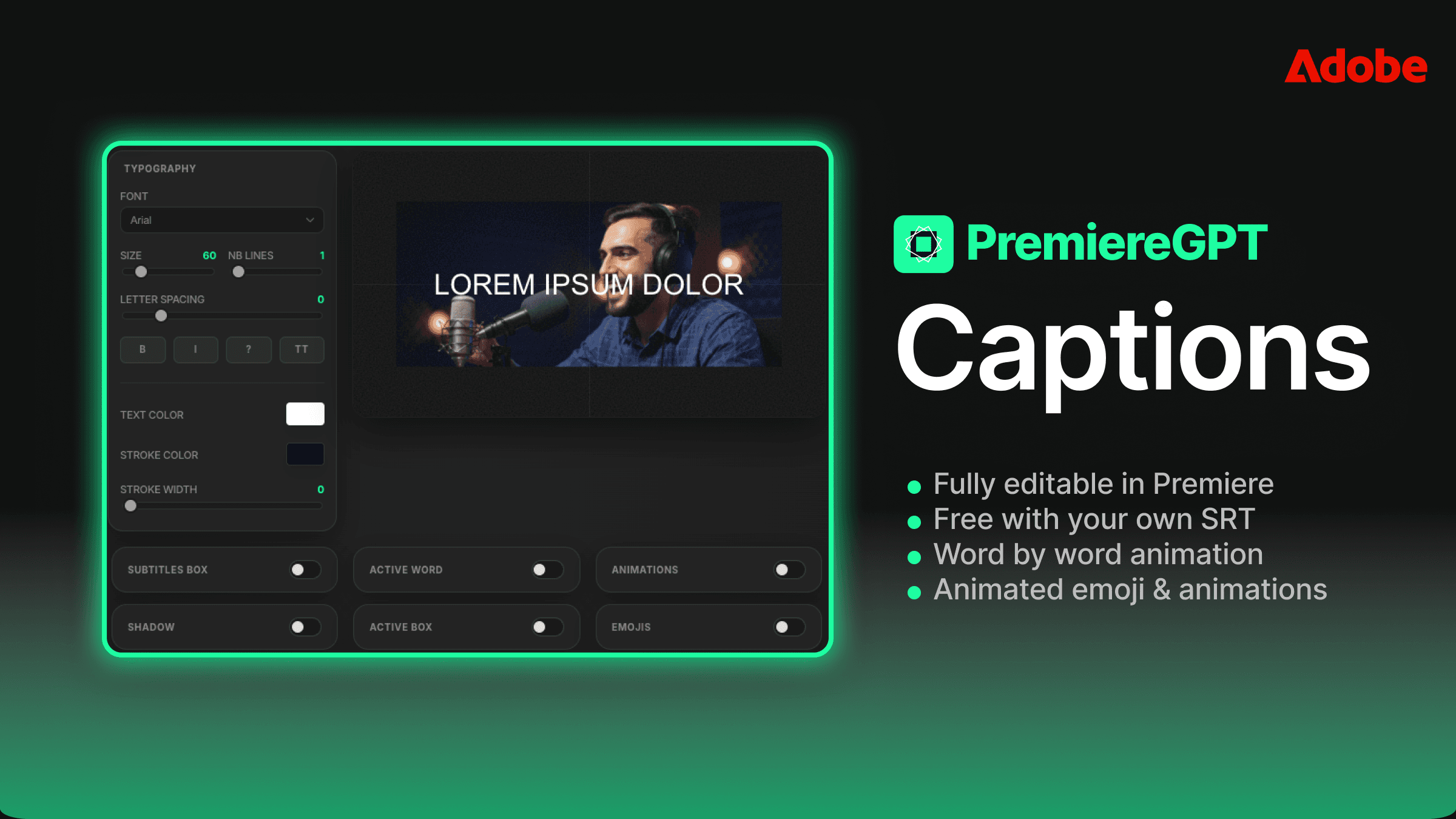
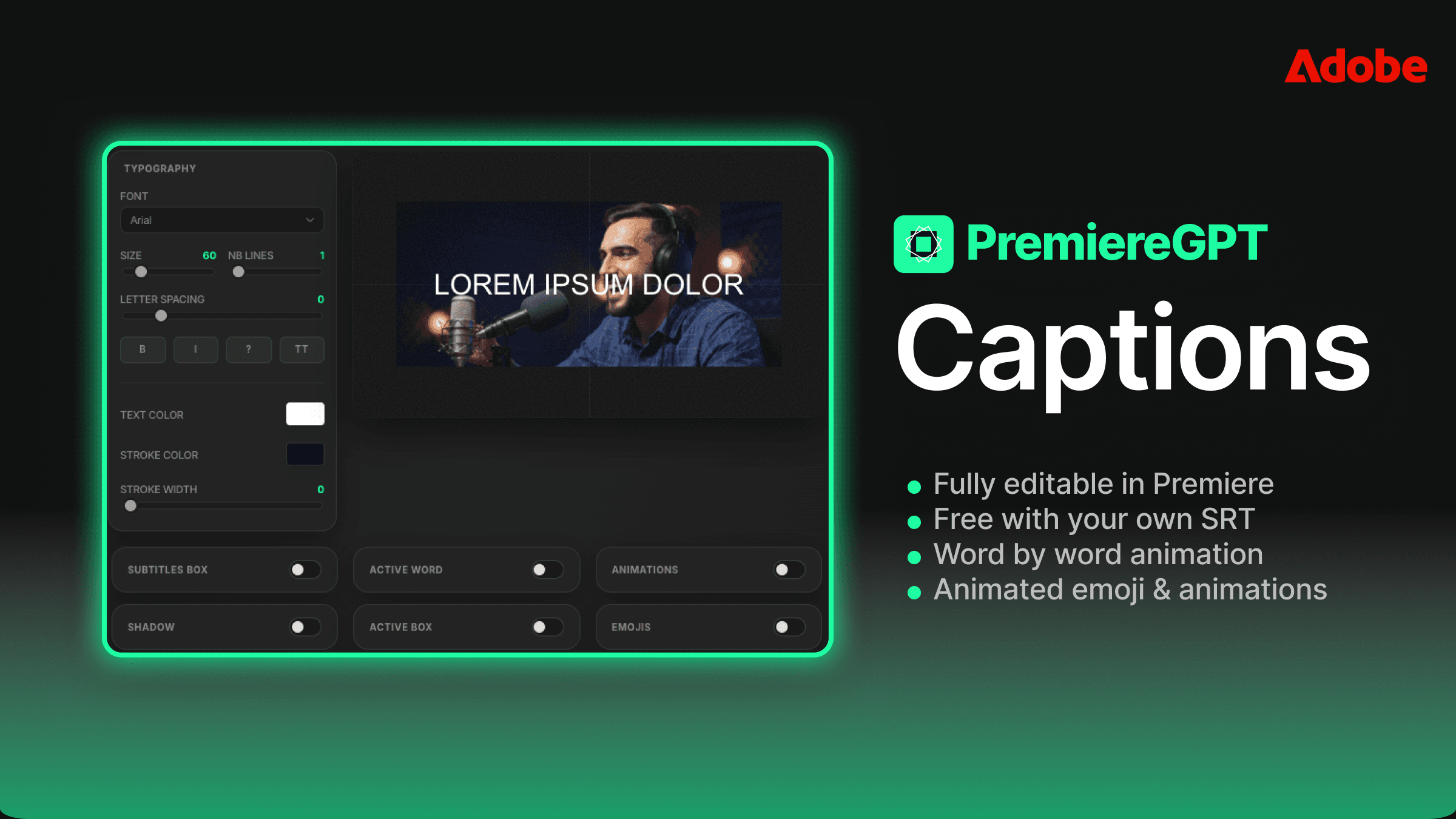
This is where the Essential Graphics comparison becomes stark. Instead of building a text style from scratch — choosing fonts, setting anchor points, building keyframe animations for scale and opacity — you select from a library of pre-built caption styles. These aren't generic templates. They're purpose-built for short-form platforms, with the correct font sizing for mobile viewing, contrast ratios that work on both light and dark backgrounds, and animation speeds calibrated for the pacing of spoken content.
Each style is fully customizable after application. If you want to swap the highlight color from yellow to your client's brand color, you're changing one value in the Essential Graphics panel. The underlying animation structure stays intact.
Step 4: Configure Context Options
Before generating, you'll see options for contextual enhancements: emoji auto-insertion, keyword highlighting, and emphasis detection. Toggle on what you want. For most short-form content, all three are worth enabling on the first pass — you can always remove assets you don't want, and it's faster to delete than to add.
Step 5: Generate and Review
Hit Generate. The tool builds your caption track directly on the Premiere timeline — each word as a separate graphic clip, timed to the millisecond, with emojis and highlights placed as additional layers above the base caption track. Your playhead is now sitting at the start of a fully animated caption sequence that you can play back, scrub through, and edit like any other timeline element.
Total time from raw audio to animated captions: under 60 seconds. The review and refinement pass — checking emoji placements, tweaking a highlight color, adjusting a word that got cut off — adds maybe another 5-10 minutes. Compare that to 3-4 hours of manual keyframing, and you're looking at reclaiming an entire half-day of your week, every week.
The Nested Sequence Advantage
One workflow tip worth noting: if you're delivering to clients who might request caption style changes after delivery, consider nesting your caption track into a separate sequence before you finalize. This keeps your caption layer isolated from your main edit, makes version management cleaner, and lets you swap caption styles wholesale by replacing the nested sequence source — without touching your primary edit. It's the kind of structural thinking that separates editors who scale from editors who stay stuck in revision loops.
Ready to Cut Your Caption Time by 80%?
If you've been grinding through manual keyframes and MOGRT lag on every short-form project, the workflow above is your exit ramp. Smart Captions handles the timing, the animation, and the contextual assets — and it does it as editable timeline elements inside the Premiere Pro you already know.
But fast captions are only half the equation. The other half is knowing the right settings for each platform — the font sizes that read on a 5-inch phone screen, the animation speeds that match TikTok's pacing versus YouTube Shorts, the color combinations that pop without burning out the viewer's eyes.
Download the free "Short-Form Retention" Cheat Sheet — a one-page PDF that gives you the exact font sizes, color combos, and animation speed parameters for TikTok, Reels, and Shorts, optimized for maximum watch time. It's the reference card that should be pinned above every short-form editor's monitor.
Get the cheat sheet, run your next project through Smart Captions with the $59 lifetime license, and see what your timeline looks like when you stop keyframing every word.