The Guess-and-Check Problem with Legacy Silence Tools
You've been there. You open your silence removal panel, drag a dB threshold slider somewhere between -30 and -45, hit apply, and watch the timeline explode into a hundred razor cuts. Then you scrub through and realize the tool clipped the "S" off "So what I was saying is…" seventeen times. You hit Undo. You adjust the slider by 3dB. You hit Apply again. You pray.
This is the edit-undo-edit loop, and it is silently (pun intended) eating hours of your life every single week. Legacy silence removal tools — and that includes some of the most heavily marketed ones on the planet — operate as a complete black box. You define a threshold, you define a minimum silence duration, and then you hand over control and hope the algorithm understood what you meant.
The problem isn't the concept. Automatic silence removal is genuinely one of the highest-leverage automations available to a video editor. The problem is the feedback loop. Or rather, the total absence of one.
Why Hitting 'Apply' and Hoping for the Best is a Massive Time Sink
Think about how you actually make a cut decision when you're editing manually. You listen. You position the playhead, you tap play, you hear the breath, you hear the pause, you hear where the next word starts — and then you make the cut. The decision is informed by audio data your ears processed in real time.
Legacy tools strip that entirely out of the workflow. You're no longer editing with your ears. You're editing with a number. And a number on a slider has zero ability to tell you whether your speaker has a quiet voice, whether the room has a high noise floor, or whether that -38dB "silence" is actually the tail of a sibilant consonant that the algorithm just axed.
The result is a post-processing cleanup job that can easily take longer than just doing the edit manually in the first place. You end up zooming into the waveform, manually extending handles, re-rippling the timeline, and fixing clip boundaries one by one. The automation didn't save you time. It just moved the time somewhere less visible — and more frustrating.
The fix isn't a better algorithm. The fix is giving you your ears back before the cuts are made.
Trust Your Ears: The Power of Sound Preview Before the Cut
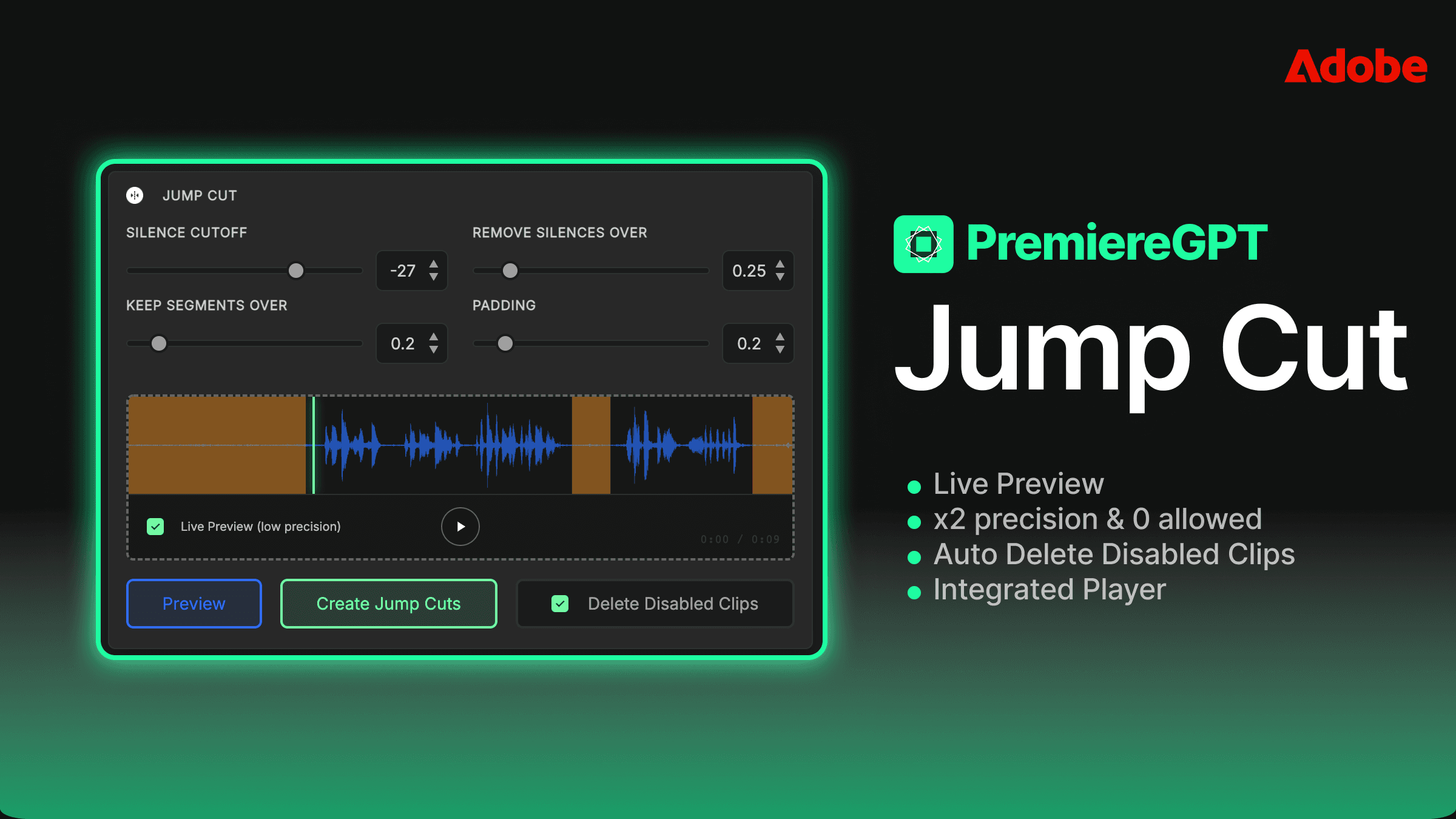
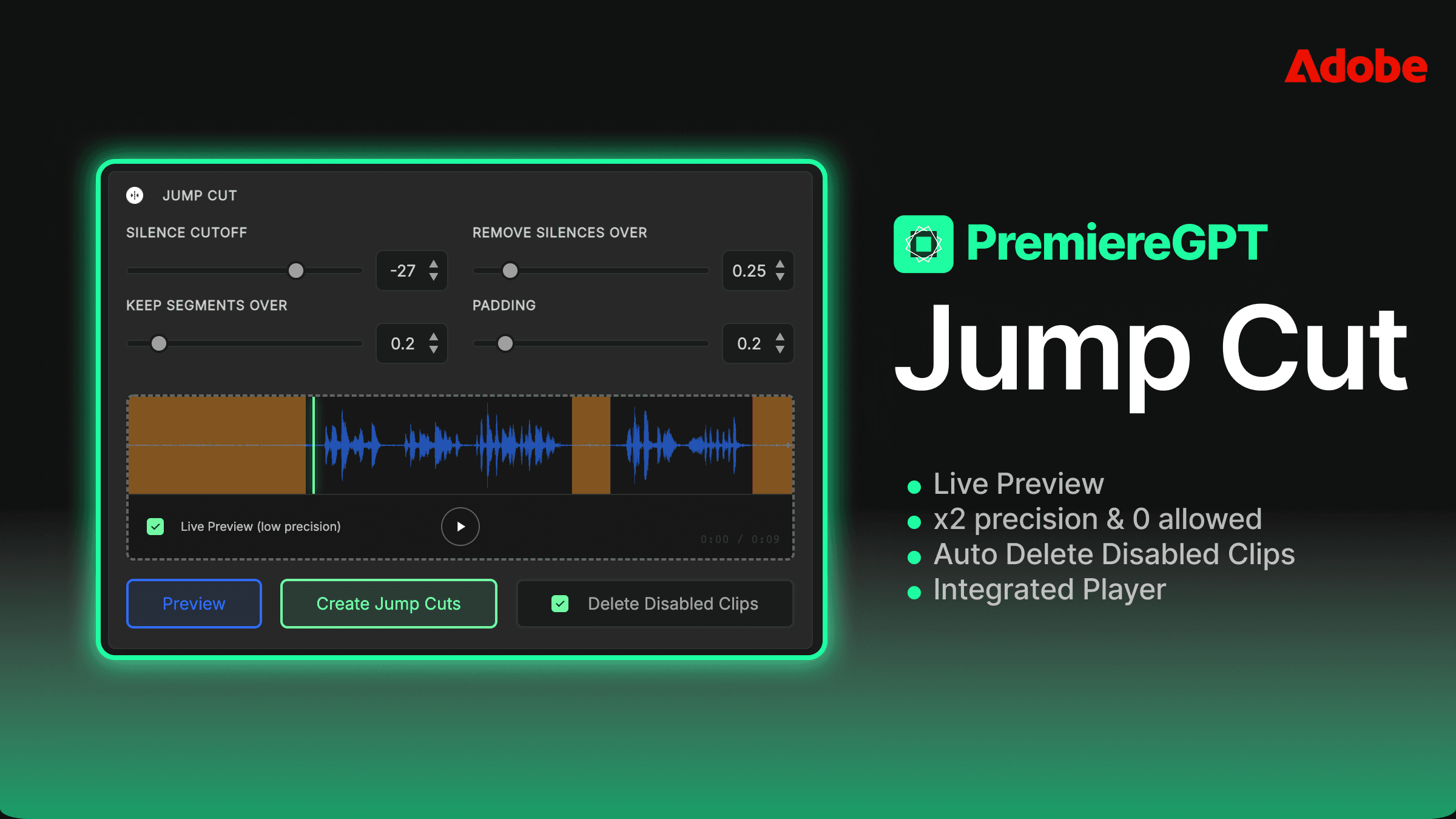
The single most important feature a modern silence removal tool can have is not a smarter AI model. It's not cloud processing. It's not a prettier UI. It's a live sound preview — the ability to audition exactly what the edit will sound like at your current threshold setting, before a single cut touches your timeline.
This is the paradigm shift. Instead of "apply and inspect," you get "listen and confirm." You move a slider, and you immediately hear how the audio flows. You can tell in two seconds whether you've set your threshold too aggressively and you're chopping into the attack of words. You can hear whether the pacing feels natural or robotic. You can hear whether a particular breath is being removed or preserved.
This is how professional audio engineers work. They monitor in real time. They make decisions with their ears engaged. It's baffling that video editing automation tools took so long to adopt the same principle.
Auditioning the Threshold in Real-Time to Avoid Clipped Syllables
Here's a scenario that every editor who works with talking-head footage knows intimately: your speaker is a mumbler, or they trail off at the end of sentences, or they have a habit of starting words softly before hitting full volume. In these cases, a threshold set at -40dB will surgically remove every gap you want gone. But a threshold set at -35dB will start eating the front of soft consonants — the "wh" in "what," the "th" in "that," the "f" in "for."
Without live preview, you have no idea which side of that line you're on until after the cuts are made. With live preview, you drag the slider from -40 to -35 and you hear the difference immediately. You hear the "wh" disappear. You drag it back to -38. The word is intact. The silence is gone. You confirm. Done.
This is the zero-crossing problem solved at the human level rather than the algorithmic level. You're not trusting the tool to find the right cut point on the waveform. You're using your ears — the most accurate audio analysis tool you own — to validate the cut point before it's committed to the timeline.
The practical result is that you make fewer mistakes, do zero post-processing cleanup, and your first pass is your final pass. That's not a marketing claim. That's just what happens when you restore the feedback loop to the editing process.
10 Seconds for 1 Hour: The 10x Speed Advantage of Local Processing
Let's talk about the other major failure mode of cloud-based silence removal tools: the upload-wait-download cycle. If you've used any of the subscription-based services in this space, you know the drill. You export your audio or your sequence, you upload it to a server somewhere, you wait — sometimes 30 seconds, sometimes several minutes depending on file size and server load — and then you get your results back.
For a 10-minute clip, this is annoying. For a 60-minute podcast recording or a full-day interview shoot, this is a legitimate workflow bottleneck. You're blocked. You can't preview different threshold settings without going through the entire cycle again. Iteration is expensive in time, so you stop iterating. You make one pass and you accept the results. Which brings you right back to the "apply and pray" problem.
Local processing eliminates this entirely. When the silence detection algorithm runs on your own machine — on the same CPU or GPU that's already handling your Premiere Pro session — the analysis of a 60-minute audio track takes seconds. Not minutes. Seconds. We're talking about the difference between a tool that fits inside your creative flow and a tool that interrupts it.
Why Waiting for 'Cloud Processing' Is a Relic of the Past
The argument for cloud processing used to be that the algorithms required more compute power than a local machine could provide in reasonable time. That argument is dead. Modern workstations — even mid-range ones — have more than enough processing power to analyze audio waveforms and detect silence in real time. The cloud processing model persists not because it's technically necessary, but because it creates a dependency. You need their servers. You need their subscription. You need their uptime.
There's also a privacy dimension here that doesn't get discussed enough. When you upload your audio to a third-party cloud service for processing, you are sending your client's content — potentially confidential interviews, unreleased product footage, sensitive corporate communications — to a server you don't control, under a terms of service you probably didn't read carefully enough. For editors working in corporate, legal, medical, or journalistic contexts, this is not a theoretical concern. It's a real liability.
Local processing means your footage never leaves your machine. Full stop. No data transfer, no server logs, no terms-of-service gray areas. Your client's content stays on your hard drive where it belongs.
And beyond privacy, there's the simple practical reality: local processing is faster. 10 seconds to analyze an hour of audio isn't a feature. It's the baseline expectation for any tool that respects your time in 2024.
Beyond the Basics: Negative Padding and Natural Flow
Let's assume you've got your threshold dialed in perfectly. Your tool is detecting silence accurately. Your live preview sounds clean. You hit apply and you listen back to the full edit — and something still feels slightly off. The pacing is too tight. Every sentence ends and the next one starts immediately. It sounds like a robot reading a script, not a human having a conversation.
This is the handle length problem. Or more specifically, the absence of handles. When you remove silence with zero padding, you're cutting right to the edge of the audio signal. There's no breath, no room tone, no micro-pause between thoughts. Human speech doesn't actually work that way. We pause. We breathe. We have fractional moments of silence that our brains interpret as natural rhythm. Strip all of that out and the edit sounds inhuman — technically correct but perceptually wrong.
The solution is padding. You add a few frames of audio before and after each kept segment, preserving just enough of the natural gaps to maintain conversational flow. Most decent silence removal tools offer this. But the best tools go further with negative padding — the ability to not just add handles, but to fine-tune the exact relationship between the end of silence and the start of speech.
Fine-Tuning the Breath-to-Speech Ratio for Edits That Don't Feel 'Robotic'
Here's the nuance that separates a good silence removal workflow from a great one: different content types require different breath-to-speech ratios. A podcast has a conversational cadence where longer pauses between thoughts are expected and natural. A corporate talking-head interview has a tighter, more formal rhythm. A YouTube vlog is somewhere in between — energetic, but not robotic.
If you're applying the same padding settings across all three content types, you're leaving quality on the table. A 3-frame handle that feels perfect on a corporate interview will make a podcast sound like it was edited by a machine. A 12-frame handle that gives a podcast its natural breathing room will make a YouTube vlog feel sluggish.
The right approach is to treat padding as a content-specific parameter, not a global default. Set your handle length based on the speaker's natural rhythm, the intended pacing of the final piece, and the platform it's being delivered to. This is not a set-it-and-forget-it number. It's an editorial decision — and with live preview, it's one you can make with your ears in real time rather than through trial and error.
Getting this right is the difference between an edit that your client watches and thinks "that's clean" versus an edit that they watch and think "that's good." The technical execution becomes invisible. The content becomes the focus. That's the goal.
The best silence removal edit is the one the viewer never notices. Every robotic jump cut is a failure of calibration, not a failure of automation.
The Economics of the Edit: Lifetime License vs. Subscription Bloat
Let's talk money, because this is where the conversation gets uncomfortable for a lot of the tools currently dominating this space. The subscription model has become so normalized in software that editors often don't stop to do the actual math on what they're spending.
Autocut Pro runs at approximately $19-25 per month depending on your plan tier. Autopod is in a similar range. Over 12 months, you're looking at $228 to $300 per year — for a single tool that does one thing: remove silence. Add that to your Adobe subscription, your stock music subscription, your cloud storage subscription, your project management subscription, and you're looking at a software overhead that would make a freelancer in 2015 weep.
The subscription model makes sense for tools that are continuously delivering new value — platforms with live data, services with ongoing infrastructure costs, collaborative tools that require server maintenance. A silence removal plugin that runs locally on your machine does not fit that description. You're not getting $25 worth of new value every month. You're paying a recurring fee for access to functionality that was fully built years ago.
Breaking Down the $240+ Annual Savings Compared to Autocut or Autopod
A one-time license at $59 is a fundamentally different economic proposition. You pay once. You own it. You use it for the next three years — or five years, or however long Premiere Pro continues to exist in its current form — and your cost per use approaches zero. There are no renewal reminders, no credit card charges in January, no "we're adjusting our pricing" emails.
Compare that to a $25/month subscription tool. In year one, the subscription costs you $300. The one-time license costs you $59. You've already saved $241 in the first 12 months. In year two, the subscription costs another $300. Your one-time license costs zero. By the end of year two, you've saved over $540. The math is not subtle.
For a full-time editor, $59 is less than two hours of billable work. For a freelancer running a lean operation, eliminating subscription bloat is not a minor optimization — it's a meaningful improvement to your operating margin. And for an editor who is simply tired of feeling like they're renting their own tools, a lifetime license is a statement of ownership in a landscape that increasingly treats software users as recurring revenue units rather than customers.
The subscription fatigue is real. The alternative is here. And at $59, the decision should take about as long as it takes you to listen to a live preview.
Want the exact settings that make this work across every content type? Download the Natural Flow Cheat Sheet — a free PDF with the precise dB threshold, handle length, and padding values for Podcasts, Vlogs, and Corporate interviews. These are the settings that make jump cuts invisible. Stop guessing. Start editing with numbers that are already calibrated.