The Ripple Delete RSI: Why Manual Trimming Is a Waste of Your Creative Bandwidth
You know the drill. It's Sunday afternoon. You've got a 45-minute interview sitting in your timeline, and your right hand is already hovering over the keyboard like a claw. Playhead forward. Listen. Gap. Razor. Ripple delete. Repeat. Two hours later, you've cleared the dead air, your wrist hates you, and you haven't made a single creative decision yet.
This is the silence-trimming tax. Every editor pays it, and almost nobody talks about how genuinely destructive it is to your workflow. We're not talking about a minor inconvenience — we're talking about the task that consistently burns your mental energy before you ever touch a color grade, a J-cut, or a sound mix.
The cognitive load of manual trimming is the problem. Your brain is operating in a low-level, reactive mode: detect silence, delete silence, move on. That's not editing. That's data entry. And when you finally surface from that loop, you're too fatigued to make the sharp creative calls that actually make a cut feel alive.
Silence removal should be handled by a tool, not by your Sunday afternoon. The question is: which tool, and at what cost — in time, money, and control?
The Problem with 'Blind' AI Cutting: The 'Click and Pray' Workflow
Most silence removers on the market operate like a black box. You drag a threshold slider somewhere around -40 dB, set a minimum silence duration, hit apply, and then watch your timeline restructure itself. Then you play it back. Then you undo. Then you adjust the slider by 3 dB. Then you apply again. Then you undo again.
This is the edit-undo-edit loop, and it is the silent killer of any efficiency gain these tools promised you in the first place. You traded manual ripple deletes for manual parameter guessing. The cognitive load didn't disappear — it just changed shape.
The core issue is that silence removal without auditory feedback is inherently a guessing game. Waveform visualization helps, but it only tells you so much. A waveform can look like silence and still contain a soft breath, a room tone shift, or the very first consonant of the next word. When you're working purely visually, you are one aggressive threshold away from clipping the front of every sentence in your interview.
Why Seeing the Waveform Isn't Enough — You Need to Hear the Cut Before You Bake It In
Here's what actually happens at zero-crossing points when a cut is too aggressive: the audio waveform doesn't return to zero before the edit, and you get a click or a pop. Worse, if your dB floor is set even slightly too high, you start eating into the attack transients of consonants — the "p," "t," and "k" sounds that give speech its clarity and presence. The result isn't clean. It's robotic. It sounds processed, even to a non-editor's ear.
The only way to know whether a cut is clean before you commit to it is to hear it in context. Not the isolated clip. Not the waveform. The actual cut, in the actual sequence, with the audio on either side of it playing through. That's what a live preview gives you.
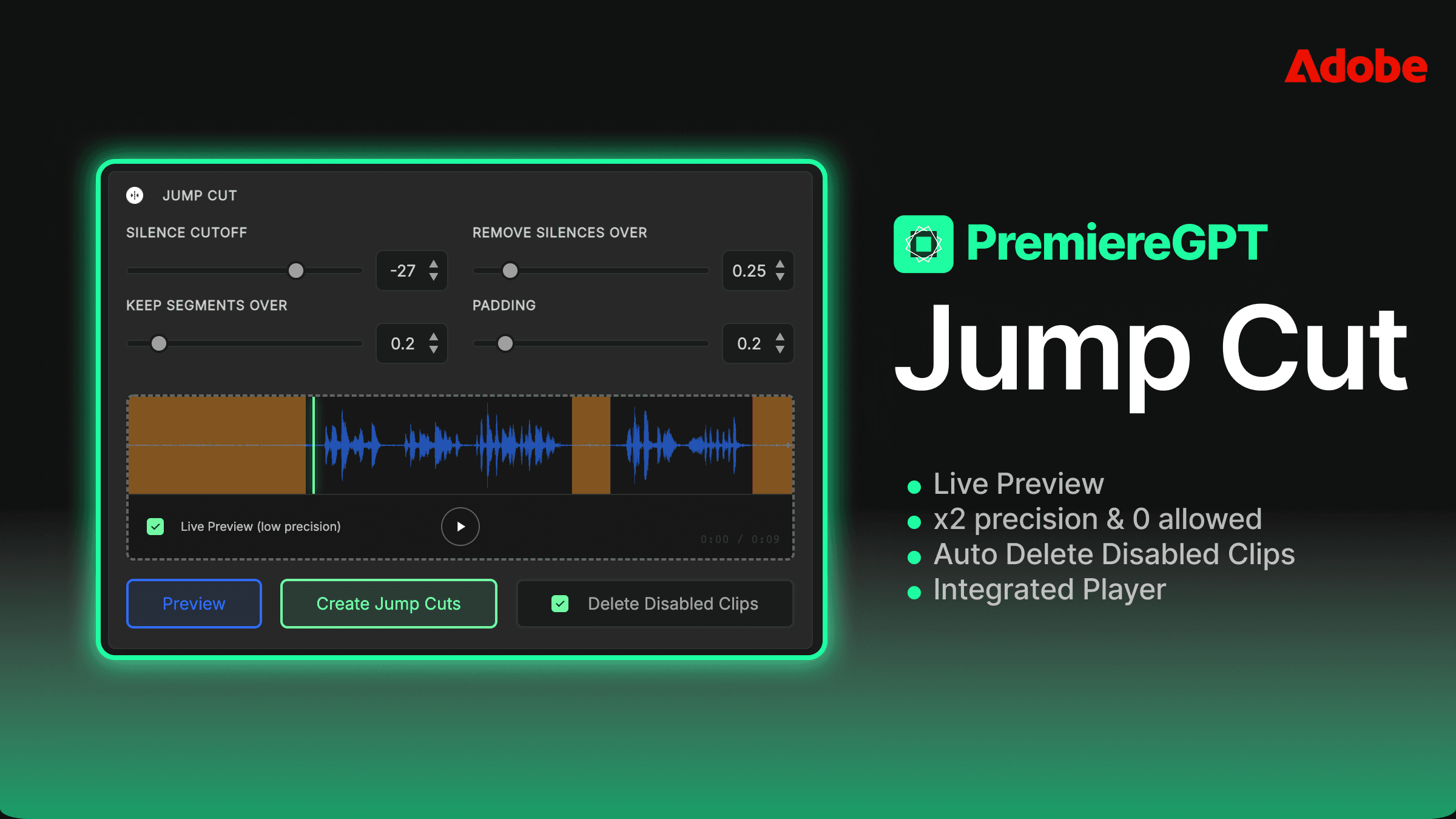
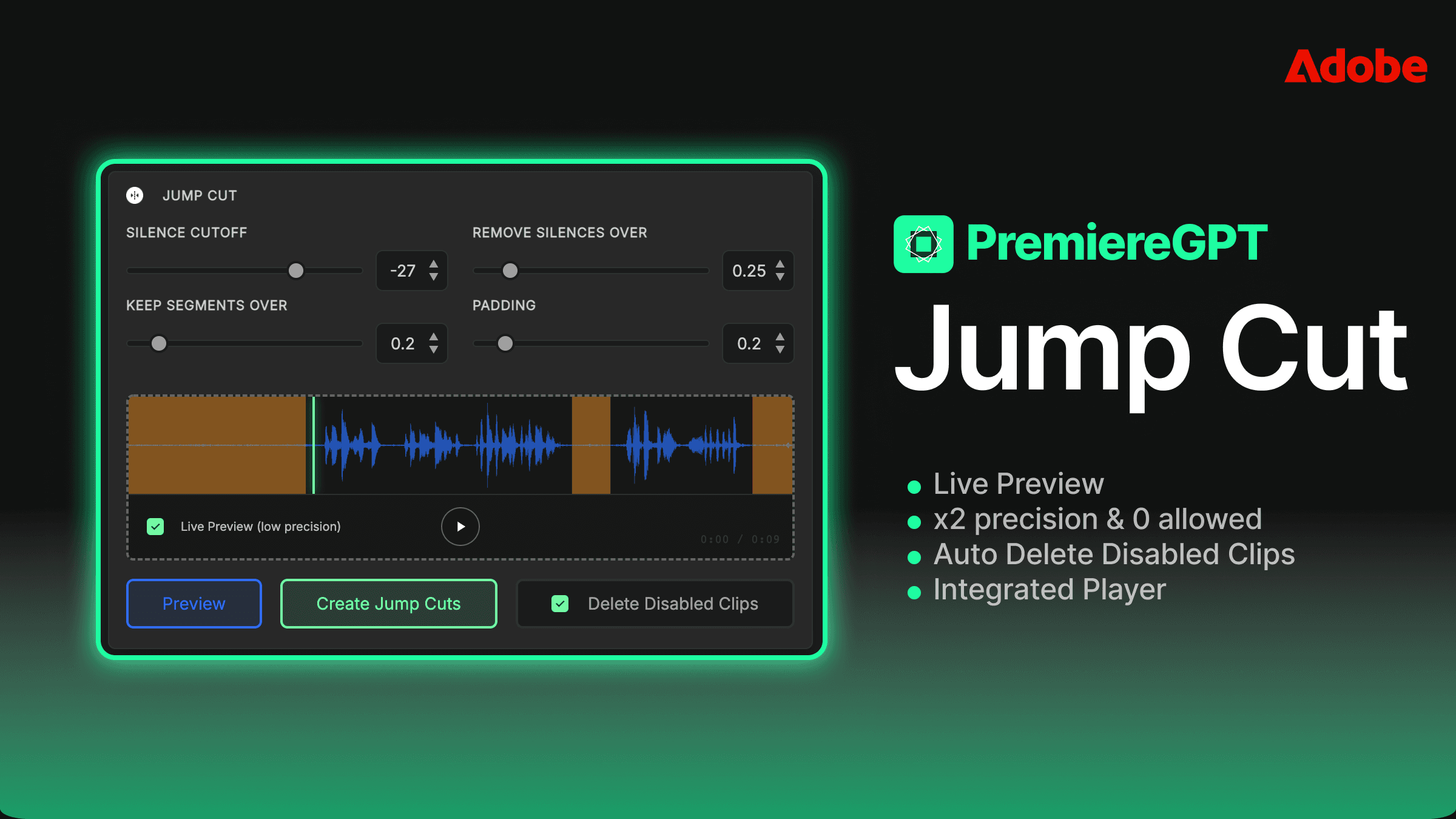
A live preview means you move the threshold slider and hear the result in real time — before a single edit has been applied to your timeline. You're not applying and undoing. You're auditioning. This is the difference between a tool that assists your editorial judgment and a tool that bypasses it entirely and asks you to clean up the mess afterward.
When you can hear that the tool is about to clip the start of a sentence, you pull the threshold back 2 dB and listen again. Three seconds of adjustment versus three rounds of apply-undo-apply. That is not a marginal improvement. That is a fundamentally different workflow.
Precision Control: Mastering Thresholds and Negative Padding
Let's get into the actual mechanics, because this is where most editors leave performance on the table. The dB floor — your silence detection threshold — is not a set-and-forget value. It changes depending on the recording environment, the mic, the subject's vocal dynamics, and the content type. A podcast recorded in a treated room with a dynamic mic needs a completely different threshold than a tutorial recorded on a condenser in a home office with HVAC noise.
A threshold that's too low (say, -60 dB) will miss a lot of genuine silence, especially in noisier recordings where room tone sits above that floor. A threshold that's too high (say, -25 dB) will start treating soft speech, breaths, and natural pauses mid-sentence as silence. Neither extreme produces a usable edit without significant manual cleanup afterward.
The sweet spot for most spoken-word content sits between -35 dB and -45 dB, but you need to tune it by ear for every project. This is exactly why live preview isn't a convenience feature — it's a precision instrument.
How to Avoid 'Robotic' Pacing by Customizing Left/Right Padding for Natural Breath
Padding is the feature that separates editors who understand speech rhythm from editors who just want fast output. Left padding (also called pre-roll padding) adds a small buffer of audio before the detected speech begins. Right padding adds a buffer after it ends. Both are measured in milliseconds, and both have a direct impact on whether your edit sounds human or processed.
Without padding, silence removal cuts right up to the first detected audio sample above your threshold. That means no breath before a sentence, no natural trailing off at the end of a thought. Every cut lands with the same mechanical precision, and the cumulative effect across a 30-minute edit is a pacing that feels rushed and unnatural — even if the content itself is good.
For podcasts and interviews, a left padding of 80–120ms gives the speaker room to breathe before their first word. Right padding of 150–200ms lets sentences resolve naturally before the cut. For high-energy YouTube content where pace is the point, you can tighten those values significantly — 40ms left, 80ms right — without losing intelligibility.
The ability to set asymmetric padding, different values for left and right, is not a minor feature. It's how you preserve the natural J-cut feel of a conversation without manually trimming every single clip afterward. You're encoding your editorial judgment into the tool's parameters, not fighting against a one-size-fits-all algorithm.
The Math of the $300/Year Silence Tax
Let's talk money, because this conversation is long overdue in the editing community. The dominant silence-removal plugins in the Premiere Pro ecosystem have moved almost entirely to subscription pricing. $25–$30 per month, billed annually, for a tool you use on every single project. That's $300 per year, minimum, for one utility plugin.
Stack that against your Adobe Creative Cloud subscription. Your stock music license. Your cloud storage. Your project management tool. Your client proofing platform. You are already running a SaaS business just to operate as a freelance editor, and silence removal is one more line item bleeding your margin.
The subscription model made sense when software required constant server-side processing and ongoing infrastructure. For a Premiere Pro plugin that runs locally on your machine, analyzing audio waveforms against a threshold you set manually, the justification for perpetual billing is thin. You're not paying for ongoing AI model training. You're paying because the pricing model extracts maximum lifetime revenue from a captive user base.
Comparing Lifetime Licenses vs. the Subscription Fatigue of Industry Standard Plugins
A lifetime license for a silence removal tool is not a "budget" choice. It's a professional financial decision. When you pay once and own the tool permanently, you are eliminating a recurring cost that compounds over time. At $300/year, a subscription tool costs $1,500 over five years. A lifetime license at even $150 pays for itself in six months and then runs at zero marginal cost for the rest of your career.
The counterargument is usually "but what about updates?" Fair point. Updates matter. But for a silence removal plugin, the core functionality — detect audio below a threshold, remove it, apply padding — does not change with every Adobe update cycle. What changes is API compatibility, and a reputable developer maintains that regardless of pricing model. You're not buying a subscription for features. You're buying it because the alternative wasn't available until now.
The smarter question isn't "is the lifetime license cheaper?" It's "does this tool do the job well enough that I'm comfortable making a one-time commitment to it?" If the answer is yes — and live preview, asymmetric padding, and a sub-10-second processing time are strong arguments that it is — then the financial case is straightforward.
Subscription fatigue is real, and it affects your relationship with your tools. When you're paying monthly, every slow month makes you audit your subscriptions. You start resenting tools you depend on. A lifetime license removes that friction entirely. You own it. You use it. You move on.
10 Seconds for 1 Hour: Speed Benchmarks That Actually Keep You in the Flow State
Processing speed for silence removal isn't just a benchmark stat — it's a workflow psychology issue. If a tool takes 3–4 minutes to analyze and cut a one-hour timeline, you are forced out of your flow state. You stop, you wait, you check your phone, you lose the thread of the edit. By the time the tool finishes, you've mentally moved on.
Processing a one-hour interview in under 10 seconds means the tool operates at the speed of thought. You set your parameters, you've already auditioned the result with live preview, you hit apply, and you're back in the edit before your attention has time to drift. That's not a marketing claim — that's the difference between a tool that integrates into your creative process and a tool that interrupts it.
For editors working on long-form content — documentary interviews, corporate training videos, multi-hour podcast recordings — this speed differential compounds dramatically across a project. A tool that processes at 10 seconds per hour versus 3 minutes per hour saves you 17 minutes on a 6-hour recording session. That's before you account for the time saved by not running the apply-undo-apply loop that blind cutting forces on you.
The goal is to stay in the edit. Every second your tool makes you wait is a second it's pulling you out of the creative headspace that produces good work. Speed is not a luxury feature. It's a prerequisite for professional-grade tools.
If you're still calibrating your silence settings by trial and error, you're leaving precision — and time — on the table. The exact dB thresholds and padding values that work for podcasts, screen recordings, and high-energy vlogs are not the same, and guessing costs you more time than you think.
We've put together The Silence Sensitivity Cheat Sheet — a practical PDF with the exact dB floor settings, left/right padding values, and minimum silence durations for three content types: Podcasts and Interviews, Tutorial and Screen Recordings, and High-Energy Vlogs. These are the settings that produce clean, natural-sounding edits without the robotic pacing that aggressive silence removal creates.
Get the Pro Settings and stop calibrating by ear every time you start a new project. Your Sunday afternoon will thank you.