The 'Checkerboard' Nightmare: Why Manual Audio Splitting Is a Relic
You've been there. You open a new podcast project and the client sends you a single stereo WAV file from their Zoom call. Three hosts, forty-five minutes, one track. Your first job, before you touch a single edit, is to figure out who said what and get each voice onto its own dedicated audio track. This is checkerboarding, and in 2024 it is still almost entirely a manual process inside Premiere Pro.
Checkerboarding — the practice of staggering clips across multiple tracks so each speaker lives on A1, A2, or A3 — is the foundational step for any serious podcast mix. You cannot apply speaker-specific EQ without it. You cannot set independent compression thresholds without it. You cannot automate levels per voice without it. Every professional workflow depends on this separation, and yet the industry-standard NLE still ships without a single native tool to do it automatically.
The result is that editors are doing one of two things: spending forty-five minutes scrubbing through a timeline and manually razor-cutting clips onto new tracks, or outsourcing the problem to external tools and then re-importing the results, breaking the native timeline and destroying any chance of a clean round-trip. Neither option is acceptable for a high-volume podcast editor turning around three or four shows a week.
The Technical Debt of Single-Track Recordings
The root problem is upstream. Remote recording setups — Zoom, Riverside, SquadCast, even some hardware mixers — often collapse multiple inputs into a single interleaved file before it ever hits your drive. Even when clients record locally and send you individual files, a surprising number of them send a mixed-down stereo bounce because they don't know better. That technical debt lands on your timeline.
When everything is on one track, your gain staging is compromised from the start. One speaker is hot, one is quiet, one has a USB mic with a 3 kHz honk. Applying a single instance of a compressor to all three voices simultaneously is not mixing — it's damage control. The compressor is constantly pumping because it's reacting to three completely different dynamic profiles at once. Your limiter is catching peaks from the loudest speaker while the quietest one sits buried. The only real fix is separation, and the only real way to get there efficiently is automation.
What Is Speaker Diarization (and Why Isn't It in Premiere Pro Natively)?
Speaker diarization is the process of partitioning an audio stream into segments according to speaker identity. The algorithm listens to a recording, identifies distinct vocal signatures, and labels each segment: "Speaker 1 was talking from 00:00 to 00:47, Speaker 2 from 00:47 to 01:15," and so on. It's a well-established field in computational audio — telephony companies have been using it for call center analytics for over a decade.
So why isn't it in Premiere Pro? The honest answer is that Adobe's development priorities have been elsewhere. The Speech to Text feature that landed in Premiere is genuinely useful for transcription-based editing, but it was built around a different use case: finding words in a timeline, not separating speakers onto tracks. Adobe's Transcript panel can label speakers after the fact, but that label lives in a metadata field. It does not move a single clip. It does not create a new track. It does not touch your timeline at all.
This is the gap. And it's a significant one.
Transcription vs. Diarization: Knowing the Difference
These two terms get conflated constantly, and the confusion leads editors to think the problem is already solved when it isn't. Transcription converts speech to text. Diarization identifies and separates speakers. They are related processes, but they produce fundamentally different outputs.
A transcription tool tells you: "At 2:34, someone said 'I think the real issue is bandwidth.'" A diarization tool tells you: "The segment from 2:34 to 2:41 belongs to Speaker 2, and here is that audio segment as a discrete, movable object." The first is a document. The second is an editorial action.
Adobe's Speech to Text, even with its speaker labeling feature, is firmly in the first category. It generates a transcript with speaker tags. What it does not do is take the audio clip on A1, cut it into segments, and distribute those segments across A1, A2, and A3 based on who is speaking. That physical reorganization of the timeline is what diarization-as-an-editorial-tool actually means, and it's precisely what's missing from Premiere's native feature set.
How Smart Diarization Works: From One Track to Ten in 5 Minutes
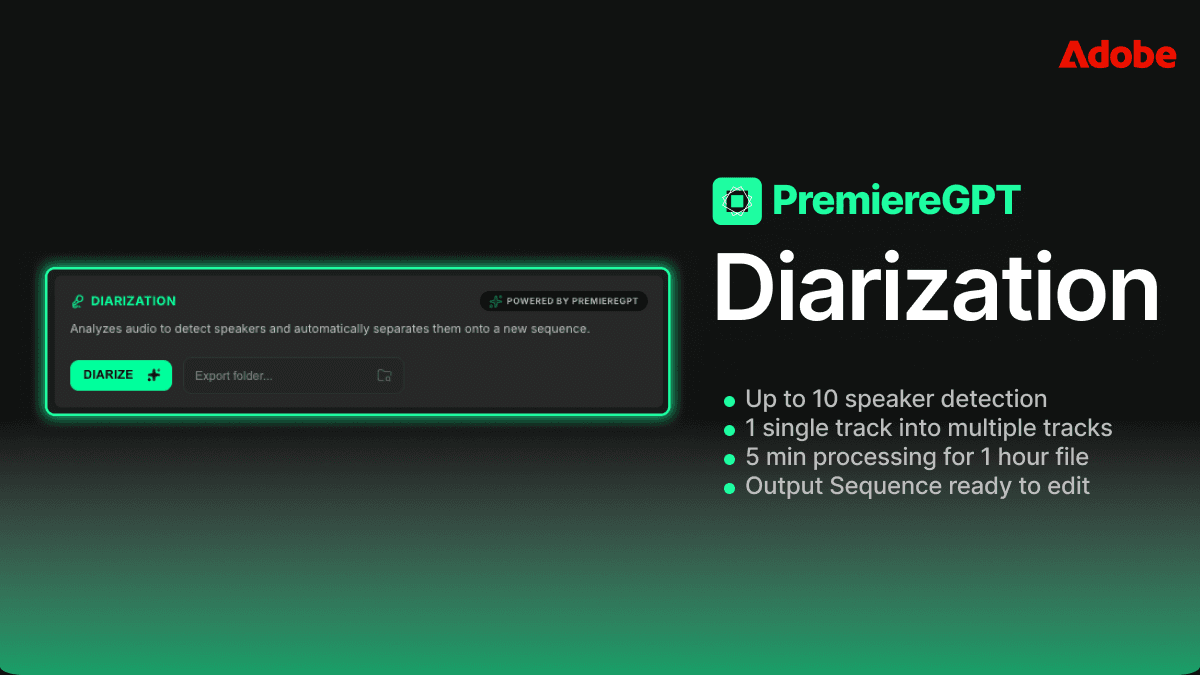
The only tool currently handling true timeline-level speaker splitting inside Premiere Pro is the Smart Diarization extension. This isn't a round-trip workflow where you export, process externally, and re-import. The extension operates directly on your sequence, reads the audio from your selected clip, runs the diarization model, and then physically creates new tracks and populates them with the correctly attributed segments — all without you leaving the timeline.
The process works like this: you select the mixed audio clip on your timeline, trigger the extension, set the expected number of speakers, and let it run. When it finishes, your single clip on A1 has been replaced by a set of tracks — one per identified speaker — with the appropriate audio segments checkerboarded across them. The clips are already in sync with your original timeline position. Your video track is untouched. Your sequence timecode is intact.
What makes this technically meaningful is that the splitting happens at the clip level in the Premiere timeline, not in a separate application. The resulting clips are standard Premiere audio clips. You can apply Audio Track Mixer settings, drop VST plugins directly onto each track, set independent gain staging per track, and automate levels exactly as you would with any manually assembled multitrack layout. The workflow you already know applies immediately.
Supporting Up to 10 Speakers Without Leaving the Timeline
For a standard two-host podcast, diarization is already a significant time save. But the real value becomes apparent on panel discussions, roundtable recordings, or conference session captures where you might have five, six, or even ten distinct voices in a single file. Manually checkerboarding a ten-speaker recording is not a forty-five-minute job. It's a half-day job, and it's the kind of work that makes editors question their career choices.
Smart Diarization supports up to ten simultaneous speakers in a single pass. You set the speaker count before processing, and the algorithm partitions accordingly. Each speaker gets their own dedicated track in the Premiere sequence. If you're working on a political debate recording, a corporate town hall, or a multi-guest interview show, this is the difference between a workflow that scales and one that doesn't.
The speaker detection is based on vocal signature modeling, not on channel separation. This means it works on true mono mixes and collapsed stereo files — the exact formats that cause the most pain in real-world deliverables. You don't need a clean multi-channel source file for this to function. You need the single problematic file that your client actually sent you.
Step-by-Step: Setting Up Your Assets and Paths for Clean Organization
Before you run diarization on anything, your project structure needs to be set up to receive the output cleanly. Dumping auto-generated clips into a disorganized project bin is how you create a different kind of mess. Here's a clean setup protocol for podcast projects.
First, establish your bin structure before import. Create a master project folder with dedicated sub-bins: Raw Audio, Diarized Clips, Music and SFX, and Sequences. When the diarization process creates new clips, they need a designated home. Most extensions will output clips to a specified path — know that path before you start, and make sure it maps to your Diarized Clips bin.
Second, set your sequence settings to match your audio deliverable. If you're delivering a stereo podcast at 48kHz/24-bit, your sequence audio settings should reflect that before you start splitting tracks. Running diarization and then discovering your sequence is set to 44.1kHz is a fixable problem, but it's an unnecessary one.
Third, label your tracks immediately after diarization completes. Premiere lets you rename audio tracks directly in the timeline panel. The moment your clips are distributed across A1 through A4, rename those tracks: Host 1, Host 2, Guest, Co-host — whatever maps to your specific show. This is a thirty-second step that saves significant confusion during the mix, especially if you're returning to a project after a day away.
Fourth, do a sync check before you start any processing. Drop a reference point — a clap, a countdown, any sharp transient that all speakers would have heard simultaneously — and verify that your diarized clips are correctly positioned against your video or reference audio. Diarization works on the audio content, not on absolute timecode, so a quick visual check against a waveform reference is good practice before you commit to a mix.
Fifth, create a pre-mix sequence snapshot. Duplicate your sequence before you apply any VST plugins or track processing. Label it with the suffix _PRE-MIX. This is your safety net. If a plugin introduces latency compensation issues or you need to revisit the raw splits, you have a clean restore point that doesn't require re-running the diarization process.
Beyond Splitting: How Diarization Enables Better Mixing and Processing
Getting speakers onto separate tracks is not the end goal. It's the prerequisite for everything that actually matters in a professional podcast mix. Once you have discrete tracks per speaker, your entire signal chain becomes purposeful instead of reactive.
Consider gain staging. In a properly diarized multitrack layout, you set the input gain on each track independently to hit a consistent target level before any dynamics processing touches it. Host 1 records hot at -6 dBFS average — you pull the track gain down. Guest records quiet at -24 dBFS — you bring the track gain up. Now every speaker hits your compressor at roughly the same input level, and your compressor can do its actual job: controlling dynamics, not compensating for wildly inconsistent source levels.
This is the difference between a mix that sounds like a professional production and one that sounds like a raw recording with a loudness target slapped on it. Diarization makes proper gain staging possible. Without it, you're guessing.
Applying Speaker-Specific VSTs and Level Normalization
With speakers on separate tracks, VST plugin assignment becomes surgical. This is where the real production value lives, and it's the workflow that separates editors who understand audio from editors who just hit export.
A typical speaker-specific processing chain in Premiere's Audio Track Mixer might look like this: a high-pass filter to clear low-end rumble (the cutoff frequency will differ per speaker and per microphone), a dynamic EQ to address the specific resonances of that speaker's voice and room, a compressor tuned to that speaker's dynamic range and speaking cadence, and a final limiter set to your ceiling. Every one of these settings is speaker-dependent. The host with a condenser mic in a treated room needs a completely different EQ curve than the remote guest on a USB headset in a kitchen.
VST nesting is particularly powerful here. If you're using third-party plugins like FabFilter Pro-Q 3, iZotope RX, or Waves plugins, you can nest an entire processing chain on each speaker track and save it as a preset. Next episode, same show, same speakers — you load the preset, your processing chain is back in place, and you're mixing within minutes of opening the project. This kind of session-to-session consistency is only possible when you have consistent track assignments, which is only possible when you have reliable speaker separation.
Level normalization per speaker is the other major benefit. Running Adobe's built-in loudness normalization, or a third-party tool like Auphonic, on individual speaker tracks rather than on a mixed bus gives you far more accurate results. The normalization algorithm is analyzing one voice at a time, not trying to find an average target across three completely different vocal profiles. The output is more consistent, and you spend less time riding faders to compensate for the normalization's blind spots.
Performance Check: Local Computation vs. Cloud-Based Alternatives
Any serious conversation about diarization tools for production use has to address the performance question. You have two architectural options: local processing, where the diarization model runs on your machine, and cloud-based processing, where your audio is uploaded to a remote server and results are returned asynchronously.
Cloud-based tools — and there are several that do competent diarization — introduce a set of problems that are dealbreakers for professional production environments. Upload time for a forty-five-minute audio file on a standard broadband connection is not trivial. Waiting for a cloud queue to process your job is not a predictable time cost. And for editors working on confidential content — corporate podcasts, legal proceedings, sensitive interviews — uploading client audio to a third-party server is often a contractual violation. These are not theoretical concerns. They are real operational constraints.
Local computation solves all of these. Smart Diarization runs its model on your local machine, which means processing time is a function of your hardware, not a shared server's queue. On a modern Apple Silicon Mac or a Windows workstation with a capable CPU, a forty-five-minute podcast episode processes in well under five minutes. No upload. No queue. No data leaving your machine. The audio stays in your project, on your drive, under your control.
The tradeoff is that local models require local resources. Diarization is computationally intensive — you're running a neural network against an audio stream. On older hardware, processing times will be longer. But even on modest hardware, local processing is faster than the manual alternative, and the privacy and reliability advantages are non-negotiable for professional use.
Cloud tools also tend to deliver their output as a labeled transcript or a set of exported audio files — which brings you back to the round-trip import problem. You're back to manually placing clips on tracks, which defeats the purpose of automation. Local, timeline-integrated diarization is not just faster. It's architecturally superior for the actual editorial workflow inside Premiere Pro.
The goal was never to label who said what. The goal was always to put each voice on its own track so you could actually mix the show. Everything else is a halfway solution.
Speaker diarization as a concept has existed in the audio engineering world for years. What's been missing is the implementation that lives where editors actually work — inside the timeline, operating on clips, producing results that feed directly into the mix. That gap is now closable, and for high-volume podcast editors, closing it is not optional. It's the only way to run a sustainable production operation at professional quality.
If you're ready to take the next step and actually use those separated tracks to build a world-class podcast mix, we've put together the exact framework for doing it. Download the Podcast Mixing Blueprint — a practical cheat sheet detailing the specific EQ curves, compression settings, and gain staging targets to apply to each speaker track once your diarization is done. It's the processing guide that picks up exactly where the splitting workflow leaves off. Download the Podcast Mixing Blueprint and try Smart Diarization today.