The LUT Lie: Why Your $50 Preset Packs Aren't Saving You Time
You've been there. You drop a cinematic LUT onto your timeline, and for about half a second, you think it looks great. Then you look at the next clip. The skin tones are orange. The sky is blown out. The shadows have gone green. You tweak the intensity slider down to 40%, and now it just looks like a slightly color-shifted version of your original footage. Congratulations — you just wasted 20 minutes.
Here's the hard truth about generic LUT packs: they are built on a single assumption — that your footage was shot in a specific color space, at a specific exposure, with a specific white balance. The moment any one of those variables shifts, the LUT falls apart. And in real-world production, those variables shift constantly.
Shoot a talking-head interview at 5600K under tungsten-supplemented daylight, then cut to drone footage shot mid-afternoon in Log-C? That $50 LUT pack is now completely useless for at least one of those clips. You're back in Lumetri Color, manually pulling the color wheels, adjusting the HSL curves, and doing the exact work the preset was supposed to eliminate.
The deeper problem is that LUTs are static transforms. They don't know what's in your shot. They don't know if you're dealing with DJI D-Log M, Sony S-Log3, or flat ARRI footage. They can't read the histogram of your specific clip and respond accordingly. They apply the same mathematical transform regardless of context — and that's precisely why they fail so often at the shot-matching stage.
The fix isn't a better LUT pack. The fix is a grading workflow that actually understands your footage before touching a single parameter. That's where natural language prompting with an AI Copilot changes the game entirely.
Natural Language Grading: Using the AI Copilot as Your Senior Colorist
Think about how you'd brief a senior colorist on set or in a color suite. You wouldn't hand them a LUT and say "apply this at 60%." You'd say something like: "This scene is supposed to feel like late afternoon in the American Southwest — warm, slightly desaturated, with lifted shadows so we don't lose the texture in the rocks." A skilled colorist translates that description into precise Lumetri adjustments. That's exactly what an AI Copilot does when you give it a well-constructed prompt.
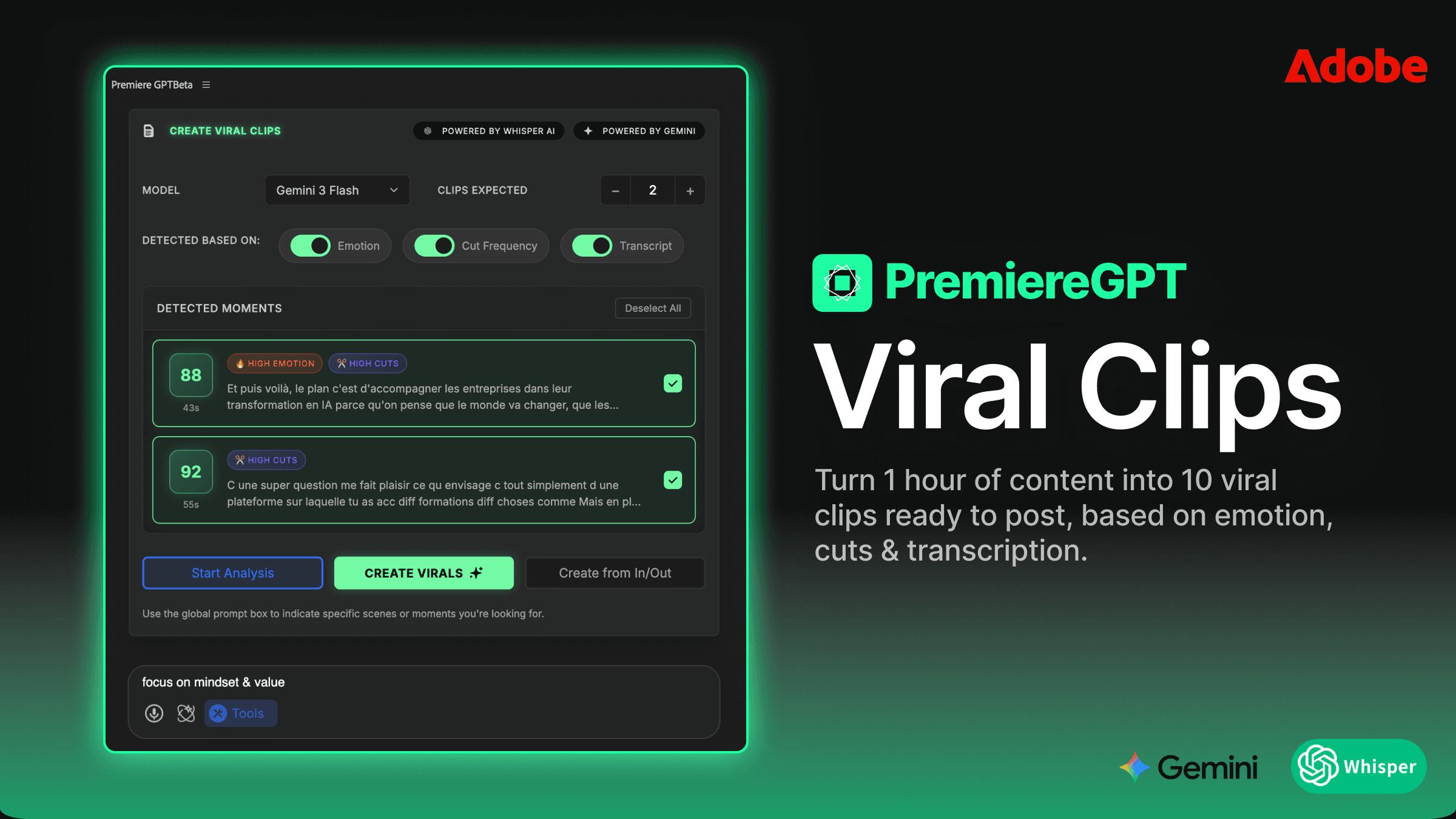
Instead of hunting through preset menus, you type directly into the Copilot interface. Something like: "Add a warm, cinematic grade with lifted blacks, reduced saturation in the highlights, and a slight orange-teal color separation in the shadows and midtones." The Copilot parses that instruction and translates it into actual Lumetri Color parameter adjustments — color wheels, tone curves, HSL secondaries — applied directly to your clip as an editable effect.
This isn't autocomplete. The Copilot is interpreting intent and mapping it to the correct technical controls inside Premiere Pro's native color tools. You're not bypassing Lumetri — you're driving it with language instead of mouse clicks. The result is that you can articulate a look the same way you'd describe it to a human, and the AI handles the translation layer between creative vision and technical execution.
For editors who know color theory but hate the tedium of manually dialing in every parameter, this is a massive time save. For editors who are still building their color grading vocabulary, it's also an education — because you can see exactly which sliders moved in response to your prompt, and start to build a mental map between descriptive language and Lumetri controls.
The key is being specific in your prompts. "Make it cinematic" will get you a generic result. "Desaturate the greens, push the shadows toward cool blue, and add a slight s-curve to the contrast without crushing the blacks" will get you something precise and usable. The more you treat the Copilot like a skilled technician who needs a clear brief, the better the output.
The 'Drone vs. Mirrorless' Headache: Matching Cameras in Seconds
Multi-camera productions are where standard LUT workflows completely collapse. Anyone who has tried to intercut DJI Mavic drone footage with Sony A7SIII handheld shots knows the pain. You're dealing with two fundamentally different sensors, two different color science pipelines, two different dynamic range profiles, and often two different log formats — DJI D-Log M on one side, Sony S-Log3 on the other.
Even after you've applied the correct technical LUT to bring each clip out of log into a rec.709 viewing space, the footage still doesn't match. The DJI sensor renders greens and blues differently. The Sony has a different tonal rolloff in the highlights. Skin tones sit in different places on the hue wheel. Getting these two cameras to feel like they were shot on the same rig, in the same light, takes real colorist skill — or a very well-constructed prompt.
With the AI Copilot, you can approach this problem directly in natural language. A prompt like: "Match this DJI D-Log M drone clip to the look of the Sony A7SIII mirrorless footage — align the color temperature, normalize the highlight rolloff, and bring the greens in line with the Sony's color rendering" gives the Copilot enough context to make targeted, intelligent adjustments rather than applying a blanket transform.
What makes this work is that the Copilot understands sensor characteristics and color space context. It's not just shifting the temperature slider — it's making compound adjustments across the color wheels, HSL secondaries, and tone curves to close the perceptual gap between two different imaging pipelines. The result isn't perfect right out of the gate — we'll get to fine-tuning — but it gets you 90% of the way there in seconds rather than minutes.
Context-Aware Grading: Why the AI Understands 'Cinematic' Better Than a Preset
Here's what separates an AI Copilot from a static preset: it analyzes the clip before it does anything. A LUT doesn't care if your shot is a drone aerial over a golden wheat field or a dimly lit interview in a concrete basement. It applies the same transform either way. The Copilot doesn't work like that.
When you prompt the Copilot to apply a "cinematic grade," it's not pulling from a fixed lookup table. It's evaluating the luminance distribution of your clip, the dominant color temperature, the presence of skin tones, and the overall dynamic range available in the image — and then making grading decisions based on that analysis. The same prompt applied to two different clips will produce two different sets of Lumetri adjustments, because the underlying content is different.
This context-awareness is especially powerful for complex shot types. Drone aerials, for example, tend to have a wide dynamic range, strong sky luminance, and highly saturated landscape colors. A "cinematic" grade on aerial footage should protect the sky detail, control the saturation of greens and blues, and add contrast without blocking up the shadows. The Copilot reads those characteristics from the clip and grades accordingly.
Apply that same "cinematic" prompt to an interview close-up, and the Copilot shifts its approach — protecting skin tone hue, managing the falloff between key and fill light on the face, and adding a controlled contrast curve that flatters the subject rather than dramatizing a landscape. Same word, different execution, because the AI is reading the content of the frame, not just applying a mathematical transform.
Fine-Tuning the AI's Work: Staying in Control
Let's be direct about something: the AI Copilot is not a magic button. It's a highly capable starting point. The difference between a good grade and a great grade still lives in the details — the specific hue rotation on a particular skin tone, the precise point where the highlight roll-off begins, the exact luminosity mask that separates your sky treatment from your foreground. That's still your job.
The critical thing to understand is that everything the Copilot applies lands on your clip as editable Lumetri Color parameters. Nothing is baked in. Nothing is destructive. Open the Lumetri Color panel after the Copilot does its work, and you'll see every adjustment it made — the color wheels, the curves, the HSL values — sitting there, fully editable, waiting for your input.
This is the correct mental model for this workflow: the Copilot handles the technical heavy lifting and gets you to a solid, technically sound starting grade in seconds. You take over from there with your colorist's eye and make the creative decisions that push it from "professional" to "exactly right." You're not outsourcing the grade — you're eliminating the part of the process that never required creativity in the first place.
A practical approach is to use the Copilot for your first pass across all clips — getting exposure, color temperature, and basic color space alignment sorted — then do a second pass manually in Lumetri for the creative grade. This two-stage workflow means you're spending your manual grading time on artistic decisions, not technical corrections. That's a fundamentally better use of your skills and your time.
You can also iterate with the Copilot. If the first prompt gets you 70% of the way there, refine the prompt: "The grade is too cool in the midtones — push the midtone color wheel slightly warmer and reduce the teal in the shadows." The Copilot adjusts from its previous state rather than starting over, so you're building toward the final look conversationally rather than hunting through sliders.
The goal is to spend your grading time on the 10% of decisions that require a human eye — not the 90% that are technically solvable with the right parameters.
If you want to accelerate this workflow immediately, the most valuable thing you can do is build a library of prompts that work for your specific production types. What gets a DJI aerial to match an A7SIII? What prompt reliably produces a warm 35mm film stock feel without going too orange? What's the right language to get the Copilot to lift shadows without destroying contrast?
That's exactly why we put together The Cinematic Prompt Cheat Sheet — a free PDF containing 25 specific, tested natural language prompts for achieving different filmic looks and matching specific camera sensors (including DJI to Blackmagic, Sony to Canon, and more) using the AI Copilot in Premiere Pro. Stop reinventing the prompt every session. Download the cheat sheet, keep it open next to your timeline, and start grading faster from day one.